 PQStat
 SYSTEM REQUIREMENTS
To use PQStat, your computer must meet the following minimum requirements:
- Processor: Intel Pentium II 500MHz
- RAM: 256MB
- Graphics Card: SVGA 800x600
- Storage: 0.2GB
- If using CD version: CD-ROM
- Other : mouse and keyboard
- Microsoft Windows 10 or 11 (64-bit)
INSTALLATION
To start the installaton process, run the applicaton installer - PQStat-setup_x86-FULL (for the 64-bit version run PQStat-setup_x64-FULL.exe).
After doing so, a setup dialog box will appear. Press “Next” to continue. Further installation requires you to accept the Terms of Service. If you accept, select: "I accept the terms of service" and press “Next”. Otherwise, select "I do not accept the terms of service" and press : “Cancel” to abort the installation.
The following window will give you an option to change the default installation directory. Information about available disc space will also be displayed. Choosing the default installation directory is recommended.
Pressing “Next” will give you a choice of either a full installation or a version not including exemplary data sets. The data sets are used in the user guide.
In the next section, you will be given a chance to change the shortcut name, which will be created in the Windows Start Menu.
After pressing “Next”, you will have an option to create a Desktop Shoutcut or add a shoutcut to the Quick Lunch toolbar. Press “Next” to continue.
The following window it the last one before the installation process begins. It displays a summary of installation options chosen so far. Pressing "Instal" will start the installation process.
SETTINGS
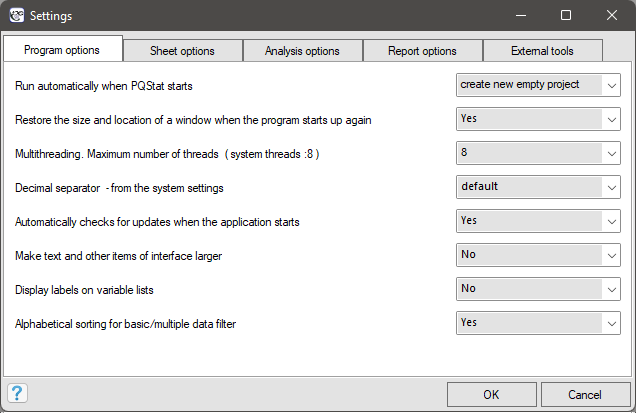
General settings regarding program options, data sheets, carrying out analysis, returned reports and use of external tools can be changed by selecting menu Edit\(\to\)Settings.
Program options
- Run automatically when PQStat starts - allows for one of three things to happen when starting the program : open a new project, open a recently used project, or do nothing.
- Restore the size end location of a window when the program starts up again - allows you to start the program so that its window is in the same place and is of the same size of the last window displayed immediately before closing the program.
- Multithreading. Maximum number of threads (system threads: 8) - provides the ability to execute tasks in multiple threads simultaneously (up to a maximum of eight threads).
- Decimal separator - from the system settings - can be set as comma or period, or by default chosen according to the settings of the operating system the program is running on.
- Automatiocally checks for updates when the aplication starts - gives you the option to check for and consequently install updates or to opt out of this service.
- Make tekst and other items of interface larger - allows you to increase the font size and the size of other interface elements, which will reduce the amount of information displayed but may make it easier to read.
- Display Labels on variable lists - Gives the option to display the labels of the variables (long names of the variables) in the variables selection lists or as a hint to the names displayed in those lists. This option will have the desired effect if the names of the variables have assigned labels.
Sheet options
- Maximum number of undo steps in sheet - the number of possible actions you can undo in the worksheet - it affects the speed of the program, so the recommended number is 10.
- The maximum number of cells to remember in one step - the number of worksheet cells, the simultaneous change of which can be considered as one action to be remembered by the programme. It affects the speed of the program therefore the recommended number of cells is 5000.
- Sheet font - allows you to set the font type that will be used to display the data contained in the datasheet.
- Action for duble-click column header - allows you to set what happens after double-clicking the column header. This can be: adjusting the columns width to fit the data inside, opening the Code/Label/Format window, opening the Inspection window.
Analysis options
- Default significance level for testing - gives the option to change the 0.05 significance level proposed as a standard in statistical analysis windows.
- MachineEpsilon - information about setting the Epsilon machine size or calculation precision (1E-16).
- Measure kurtosis - information about the setting of the kurtosis calculation method (g2, or Pearson's b2), where a normal distribution is characterized by value zero of kurtosis g2 or b2 close to the value of three.
- Sorting order for the contingency tables - gives you the option to sort rows and columns of a contingency table in ascending or descending order. This option not only affects the displayed results in tables and graphs, but also affects those analyses based on contingency tables for which the order of categories is important.
- Method to sort string values in alphabetical order - Allows you to sort data and results stored in text form naturally or alphabetically. Natural sort order is an improved alphabetical order, where multi-digit numbers are treated indivisibly, i.e. as if they were a single character. For example, in alphabetical sorting, "a11" will be sorted before "a2" because "1" is less than "2", whereas in natural sorting, "a2" is sorted before "a11" because "2" as less than "11"
- Labels for values. Show in analysis: - gives you the choice of displaying in values or labels corresponding to current values when using the filter or when the analysis requires setting individual values of the selected variable.
Report options
- Displays a value rounded to the specified number of decimal places - allows you to set the maximum number of decimal places reported for real numbers.
- Displays a percentage rounded to the specified number of decimal places - allows you to set the maximum number of decimal places reported percentages.
- Exponential notation for p-value - allows you to specify how the p-values of statistical tests are displayed in numeric form (with a defined number of decimal places) or in scientific notation.
- Color for p-value below the significance level - allows you to set the color that will be used to indicate statistically significant results at the set level.
- Report name in the navigation tree - gives a choice of the type of information about executed analyses added to the name of analysis in navigation tree. It is possible to give only the name of the test or the name together with: the time of its execution or the description of the test, or the chosen filter, or the used grouping variable, or the names of the variables involved in the analysis.
- Show variable values as item labels - Gives the option to display the labels of the variables (long names of the variables) in analysis reports. This option will have the desired effect when the names of the variables have assigned labels.
- Report font - allows you to set the font that will be used to display the result descriptions included in the reports.
- Default plot size(width/height) - allows you to set the default number of pixels for the height and for the width of the graph.
- Default plot temlates - gives you the ability to pre-set chart options that are important to user.
External tools
- Path to gnuplot binary files - To be able to generate a 3D plot for the analysis of a nuclear 2D density estimator, the gnuplot program must be installed on the system.
- Path to IO module for SPSS Statistics - To be able to read sav files (IBM SPSS Statistics program data storage format), the IBM IO SPSS vendor module is required, so you have to download the \(IO\_Module\_for\_SPSS\_Statistics\_20001.zip\). For more information, see
AI model source - PQStat can use a locally or remotely running language model (AI). Three independently stored model sources are available, and you can freely switch between them without losing the settings entered for the others:
Local (this computer) - uses a model running on the same computer as PQStat. In the Local engine field we choose the program that serves the model:
- \(\cdot\) Ollama - requires filling in the API URL field (by default
http://localhost:11434) and the Model field - the name of a model previously downloaded with theollama pullcommand. The Refresh list button retrieves from the server the list of currently available (downloaded) models. - \(\cdot\) LM Studio - uses the local LM Studio server, which serves the model through an OpenAI-compatible API (no key). LM Studio can be downloaded from
https://lmstudio.ai(when PQStat does not detect the server, it offers to open this page). In LM Studio download a model, then enable the server: Settings \(\to\) Local Model API \(\to\) the Local API server switch (it should show Running); the Base URL field in the same window shows the address to enter in PQStat. With Just-in-time model loading enabled the model is loaded automatically at the first request. In PQStat enter the API URL (by defaulthttp://localhost:1234/v1) and select the Model - the Refresh list and Test connection buttons retrieve the list of models available in LM Studio. If the selected model supports images, check Model supports images (force).
The settings of both engines are remembered independently - switching the engine does not clear the address or model of the other one.
- \(\cdot\) Ollama - requires filling in the API URL field (by default
- Remote Ollama server - uses an Ollama server running on another computer, available on the local network or via VPN. In addition to the API URL and Model fields, you can provide an optional API key if the remote server is exposed behind a reverse proxy requiring authentication, and select Require valid certificate for encrypted (https) connections. The Test connection button checks the availability of the server regardless of whether a model has already been selected, while Refresh list retrieves the list of models available on that server.
- Cloud (OpenAI-compatible API) - uses any external service providing an API compatible with the OpenAI standard (e.g. OpenAI, Google Gemini, LiteLLM API Gateway and other gateways of this type, including company proxy servers). Requires filling in the API URL (the drop-down list suggests the addresses of popular providers) and the API key (stored in encrypted form - the Show checkbox lets you temporarily view the entered value). After clicking Test connection, the program attempts to retrieve the list of available models from the server - if this succeeds, the Model field turns into a drop-down list to choose from. If a given service does not provide such a list in a standard way (e.g. Google's native API requires a different type of authentication for this than a plain key), the model name must be entered manually, and the connection test will then be performed as an actual request to the specified model. The Model supports images (force) checkbox lets you manually force the selected model to be treated as supporting images, when the program cannot detect this automatically.
AI settings for all users of the computer. By default the AI settings are stored separately for each Windows account. Checking Save as default for all users of this computer before clicking OK saves the selected model source (API URL, model, encrypted API key) to the file
C:\ProgramData\PQStat\AI\pqstat_ai.ini. These settings are used by every user of the computer who has not changed the AI settings in their own account. The computer settings are only defaults: a user can change them, and the changes apply to that user's account only. The label below the checkbox shows whether the computer settings or the user's own settings are in use; the Restore computer settings button returns to the defaults. An API key saved for the computer can be used by every user of that computer.IT departments can set these values during installation by passing parameters to the installer:
/AIMODE=local|remote|cloud,/AIENGINE=ollama|lmstudio(forlocal),/AIURL=address,/AIMODEL=model,/AIKEY=key, optionally/AIVERIFYCERT=0and/AIVISION=1, e.g.PQStat-setup_x64-FULL.exe /VERYSILENT /AIMODE=remote /AIURL=https://llm.university.edu /AIMODEL=gemma2:9b