 PQStat
 ORGANIZATION OF WORK WITH THE PROGRAM
All statistical analysis procedures are available in the Statistics menu.
FORM OF DATA ORGANIZATION
The form of data organization depends on the statistical procedures that the user plans to perform.
A statistical analysis may concern data collected in the form of a contingency table or in raw form. The data can be converted from one form to the other:
- from a contingency table to raw form \(-\) via the Data menu \(\to\) Convert to raw data...,
- from raw form to a contingency table \(-\) via the Data menu \(\to\) Convert to table...
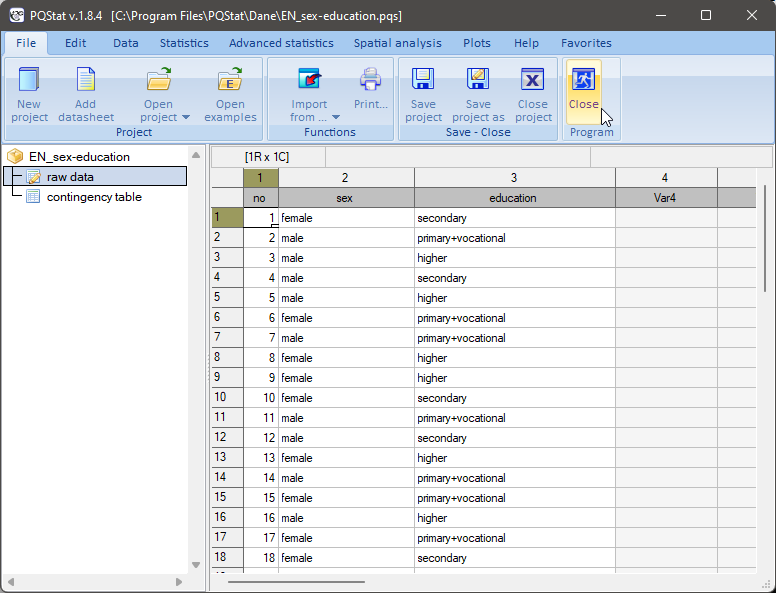
Data in the form of raw records is data organised in such a way that each row contains information about a different studied object (patient, company, etc.)
Example 1. Raw data (sex-education.pqs file)
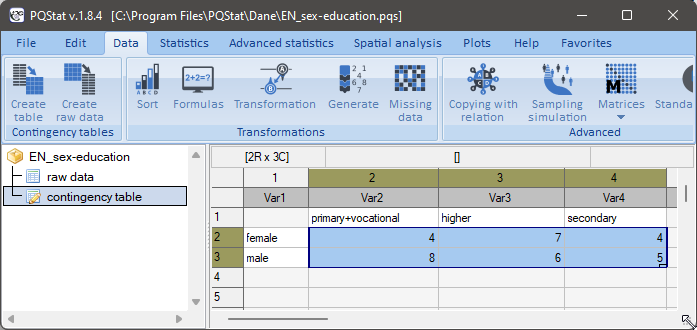
A contingency table is a table presenting the joint distribution of two variables. Its interior consists of the observed frequencies (natural numbers).
Example 2. Contingency table (sex-education.pqs file)
DATASHEET WORKING AREA
Usually, when performing a statistical analysis, we have access to the whole working area of the datasheet. However, the user can freely narrow this area by indicating a specific part of the sheet. Such an indication can be made in several ways:
Organising variables into sets
Variable sets are subsets of variables. Defining various sets is intended to make it easier to select variables in analysis windows by limiting the displayed list of variables. The selected variable set is displayed in the variable lists of every analysis dialog box, as well as in the datasheet.
By default, the default set of variables is used. The default set is a set made up of all the variables.
Defining variable sets
To define your own variable sets, double-click the name of the active set at the top of the datasheet window.
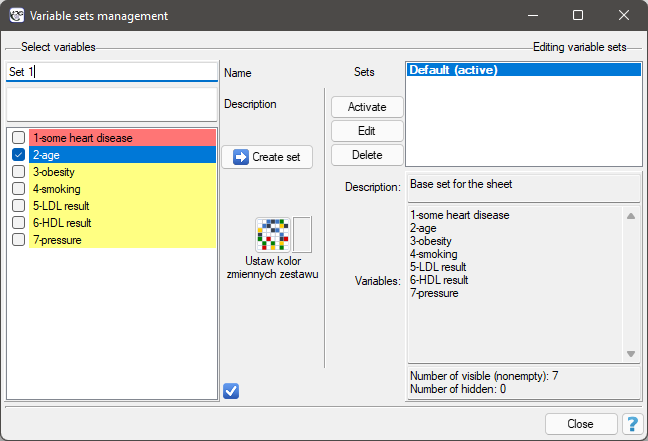
In the Variable Set Management window, we give the name of the new set (and, optionally, its description), and select on the list the variables that are to make up the set. We confirm the choice with the Create Set button. A variable may belong to multiple sets.
Editing variable sets
To edit a set, in the Variable Set Management window we choose a set from the list of sets and confirm with the Edit button. In the variable selection window, the variables already selected for the set will appear checked, along with the unchecked variables that do not belong to the set. After checking/unchecking the variables as required, we confirm the choice with the Save Changes button.
Activating the selected variable set
Activating a set is done in the Variable Set Management window, or through the context menu at the top of the datasheet, on the name of the selected set.
Case activation/deactivation
Case activation/deactivation is a global option that overrides other area restrictions available in the program. Cases (rows) indicated as deactivated are shaded in the datasheet and do not take part in statistical analyses.
To activate or deactivate selected cases, choose one of the following options:
- indicate the rows in the datasheet and choose the Activate/Deactivate option from the context menu on their name;
select the Edit \(\to\)Activate/Deactivate (filter)... menu
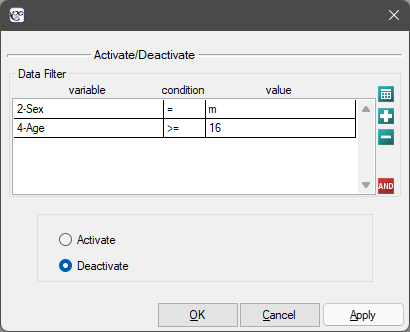
Example 3. (filter.pqs file)
We intend to carry out a number of statistical analyses on the data from the filter.pqs file. These analyses are not to concern boys who are 16 years old or older. For this purpose, we define the rows that will be excluded from the analysis: we click the button and set a rule for the variable gender; we click the button again and set a rule for the variable age. Remember: for this task to be carried out correctly, all filter conditions should be joined by a conjunction (indicated by the
  sign). We leave the Deactivate option selected, and confirm the analysis conditions set this way with the OK button.
When narrowing the working area of the datasheet, remember that filter conditions can be joined by a conjunction or by an alternative. We switch between the alternative and the conjunction using the
 buttons.
More examples of how to use the filter can be found here.
To activate all cases, select the Edit \(\to\)Activate all menu.
Selecting an area
Selecting a coherent area causes the analysis we subsequently choose to be performed only on the rows contained in the selection, and to have available only the columns that lie inside the selection and contain data.
Example 4. (filter.pqs file)
We want to determine the descriptive statistics for the height of girls between 10 and 15 years of age. We sort the data by the gender column and by the age column, and then select a coherent area containing the column with the height of girls between 10 and 15 years of age, and choose Statistics\(\to\)Descriptive analyses\(\to\)Descriptive statistics from the menu.
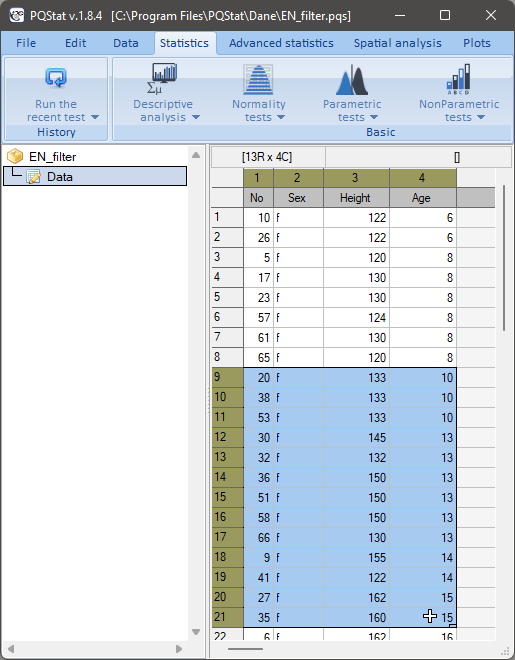
Narrowing the working area of the datasheet by selecting a coherent fragment of the data causes the following message to be shown in the analysis window:
Data restricted by selection
Saved selection
If saved selection ranges are assigned to the datasheet, they are marked with a border. They can be used in those analyses that allow the data to be entered directly in the analysis window. In that case, using the fill from saved selection button, the data lying within the chosen range can be pasted in.
Example 5. (layers.pqs file)
We want to determine the statistics related to the Odds Ratio (OR) analysis for several strata. We will use data stored in the form of 10 tables \(-\) they are highlighted (bordered). From the Statistics menu, we choose Analysis for strata \(\to\) Mantel-Haenszel OR/RR. In the test options window, we tick contingency table and then set the number of strata to 10. Each of the resulting strata can now be filled from the saved selection. Once we have filled in all the tables, we perform the analysis by clicking the OK button.
Data filter
Data Filter is an option available once any statistical analysis has been selected. Setting it reduces the number of rows taking part in that analysis. Either a basic filter or a multiple filter can be set.
Basic filter lets you select one particular subgroup. The choice can be made in two ways:
Automatic method – this way we can impose one condition on the collected data using the
button, or several conditions by pressing again. These conditions will be joined by an alternative or a conjunction depending on whether we choose the or button. Conditions are removed using the  button.
Example 6. Automatic basic filter (filter.pqs file)
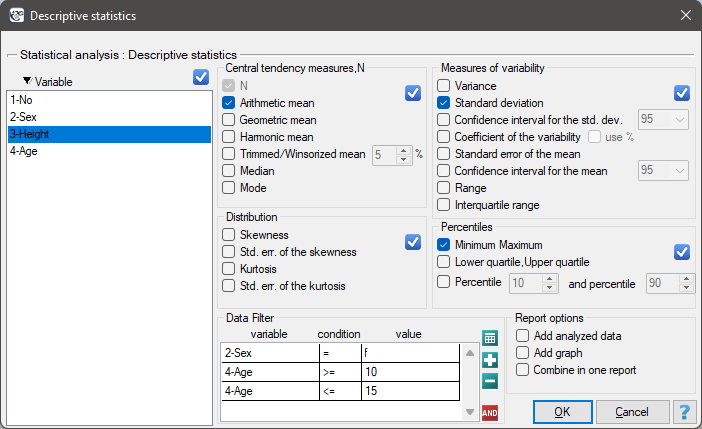
We want to determine the descriptive statistics for the height of girls between 10 and 15 years of age. From the menu, we choose Statistics\(\to\)Descriptive analyses\(\to\)Descriptive statistics. In the descriptive statistics test options window, we select the procedures we want to perform (e.g. we tick the mean, standard deviation, minimum and maximum) and the variable for the analysis (the height column). We set the filter by adding rules with the button. First we set a rule for the variable gender, choosing the equals sign as the condition and the letter g (girls) as the value. Next we add another condition and set a filter for the variable age, choosing \(>=\) as the condition and entering 10 as the value. In the same way we add the condition age \(<\)=15. Remember: for this task to be carried out correctly, all filter conditions should be joined by a conjunction (indicated by the sign). We confirm the analysis conditions set this way with the OK button.
Advanced method – this way we can write any rule, whether a fully simple one or a more complex one. We switch to the advanced method by toggling the
 button to
  and then selecting . This opens a window in which we can build the filter formula.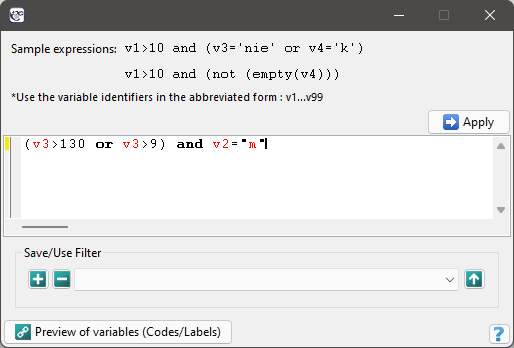
When setting up an advanced filter, we use variable numbers preceded by the letter v. The variable numbers and their contents can be checked using the Preview of variables (Codes/Labels) button.
The following logical functions are available:
and – the conjunction operator – checks whether all the conditions it joins are true,
or – the alternative operator – checks whether at least one of the given conditions is true,
xor – the exclusive-alternative operator – checks whether exactly one of the given conditions is true,
not – the negation operator,
empty(v1) – a function checking whether empty cells occur,
text(v1) – a function checking whether the cells contain text,
numer(v1) – a function checking whether the cells contain a number.
A finished filter can be used by selecting the Apply button, or saved for later by selecting the button. Saved filters can be used by sending them to the formula window with the  button.
Example 7. Basic advanced filter (filter.pqs file)
We want to determine the descriptive statistics for the height of boys who are taller than 130 cm or older than 9 years. From the menu, we choose Statistics\(\to\)Descriptive analyses\(\to\)Descriptive statistics. In the descriptive statistics test options window, we select the procedures we want to perform (e.g. we tick the mean, standard deviation, minimum and maximum) and the variable for the analysis (the height column). We set the filter by entering the formula (v3>130 or v4>9) and v2='m'. We then choose Apply and perform the analysis.
Multiple filter \(-\) imposes one condition on the collected data, dividing it into several subgroups. The chosen analysis is performed repeatedly, separately for each subgroup.
Example 8. Multiple filter (filter.pqs file)
We want to determine the descriptive statistics for the height of girls, and separately for the height of boys. From the menu, we choose Statistics\(\to\)Descriptive analyses\(\to\)Descriptive statistics. In the descriptive statistics test options window, we select the procedures we want to perform (e.g. we tick the mean, standard deviation, minimum and maximum) and the variable for the analysis (the height column). We set the multiple filter by adding a rule with the button and choosing the variable Gender. We confirm the chosen analysis options with the OK button. As a result we obtain 2 reports: a separate one for boys and a separate one for girls.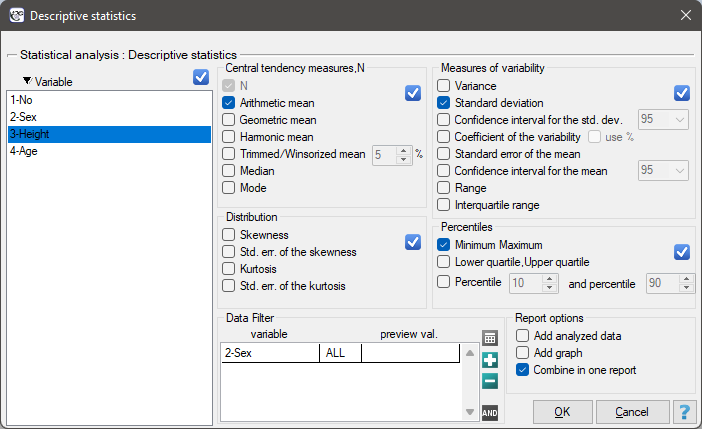
RUNNING ANALYSES MULTIPLE TIMES
To make it easier to run the same analyses multiple times, you can:
- Use the option of remembering the current and previous analyses. PQStat automatically remembers the most recently performed analysis and the options set in its window. A quick way to return to it is provided by the
 button (ribbon menu ->
 ) placed on the toolbar.
 - Use the option of remembering the analysis based on the report. Together with the analysis report, PQStat automatically remembers the options set in the analysis window. A quick way to return to it is provided by the
 button, found in the right-click context menu on a report in the project's Navigation Tree.
 - Select multiple variables in the analysis window, so that the analysis is carried out multiple times. The results for each of the analyses performed are returned in successive reports.
- Use the multiple filter so that the analysis is carried out separately for individual subsets of the data. The results for each of the analyses performed are returned in successive reports.
ORGANISING REPORTS INTO SETS
When there is a larger number of reports, it is convenient to group them into sets. Prepared sets make it easier both to navigate through the results and to speed up transferring the results to other programs such as Excel or Word \(-\) in that case, entire sets of reports are transferred, not just individual reports.
Creating sets
Through the Create empty context menu option in the Navigation Tree, on the datasheet or on an existing set.
Placing reports into sets
Reports can be placed into a set:
- at the moment of their creation – from within the analysis – for this purpose, in the analysis window we click the
 button and choose the set the created analysis report is to go into, or before running the analysis, point the cursor at that set in the Navigation Tree;
 - after the analysis has been performed – using drag and drop, or the context menu on the name of the report(s) in the Navigation Tree, or through the Project Manager.
Editing sets
Through the context menu in the Navigation Tree, on the datasheet or on an existing set \(-\) Edit sets.
Deleting sets
Through the context menu in the Navigation Tree, on the name of the set \(-\) Delete set (Shift+Del).
INFORMATION RETURNED TO THE REPORT
In addition to the basic settings concerning the statistical analyses performed, in the test window we have the option of:
Including the analysed data in the report.
Depending on the test being performed, the analysed data can be returned to the report:- in the form of raw records,
- in the form of a contingency table.
- Including a chart in the report.
For the appropriate chart to appear in the report, in the window of the chosen statistical analysis we tick the Add chart option. - Combining the results of multiple analyses into a single report.
By selecting multiple variables, or by applying a multiple data filter, several analyses of the same type can be carried out at the same time. To make browsing the results easier, all the analyses carried out this way can be returned to a single report. For this purpose, in the analysis window we tick the Combine into one report option.
MARKING STATISTICALLY SIGNIFICANT RESULTS
In the report, the \(p\) value of the statistical test performed is marked in red when it is lower than the significance level set by the user. By default, a significance level of \(\alpha=0.05\) is selected for all tests. This setting can be changed permanently in the Settings window, or temporarily (until the application is closed) in the window of the chosen test.
