 PQStat
 SPATIAL ANALYSIS
Statistical spatial analysis is defined as a set of techniques for studying data which are located in space viewed in relationship with the surface of the Earth. Particular techniques of spatial analysis are used in diverse areas of science, from medicine (epidemiology), through logistics and physics, to economy (finding the best locations for plants, shops, etc.).
The development of the methods of spatial distribution analysis and of the analysis of interrelationships among objects has been and is, to a large extent, determined by the development of information technology. Computers with ever increasing computing power, together with GIS systems, allow the processing of large amounts of geographic data.
BASIC DEFINITIONS
- Geographic Information System - GIS
–is a system for entering, storing, processing, and visualization of geographic data. From the technical point of view GIS is a tool which allows the analysis of interrelated:
- information about spatial locations of objects –represented by means of a map;
- descriptive characteristic concerning objects presented on a map –represented by means of a database.
- Objects represented by means of a map are:
- Points –the location of which, in 2D, is defined with the help of two coordinates \((x,y)\);
Multipoints –they are points grouped in sets:
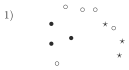
- 1) An example of a multipoint in which each point is defined as belonging to one of 3 groups.
- Lines –they are created by linking subsequent points, in proper order (lines can intersect);
Polygons –they are closed spaces, restricted by means of external rings (closed lines which do not intersect and which go through at least 3 points, in an appropriate order). Polygons can also contain internal rings constituting their internal boundaries. External rings are defined clockwise and the internal ones the other way round.
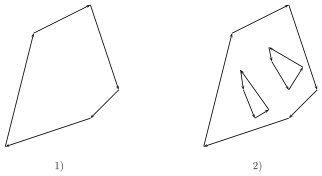
- 1) An example of a polygon which only has an external boundary (with no internal rings);
- 2) An example of a polygon which has both an external boundary and internal boundaries (areas defined by the internal rings constitute a part of an external area, i.e. they do not belong to the polygon).
- Object attributes
are entered into the base in the form of:
numbers –e.g. area, temperature,
texts –e.g. names of objects.- Map projection
is a mathematical method of mapping the surface of the Earth onto a map surface. There is a number of methods for such mapping. The mappings can be based on a spheroid or on the surface of a ball (a sphere), or on a part of either of them. Each mapping forms the basis for defining an appropriate coordinate system. Because each projection of a surface entails certain distortions (distortions of angles, areas, lengths), the choice of a proper system depends on the aim for which the map is to be used.
Coordinate systems used in cartography are classified as:- geographic coordinate systems (they define geographic latitude and longitude);
- cartesian coordinate systems;
- polar coordinate systems.
For a map to be loaded correctly, the program PQStat requires a vector map saved in a SHAPEFILE (shp) type of file and defined in a proper Cartesian coordinate system, with line scale.
The program tries to automatically detect maps with geographic coordinates. If, while importing the map, the program detects a geographic coordinate system, it suggests converting the coordinates into a UTM system (Universal Transverse Mercator), on the basis of the WGS-84 system of reference. As conversion might be incorrect (due to the use of many geographic coordinate system and the lack of certainty with regard to the applied system), it is recommended that properly prepared maps be used –in a Cartesian coordinate system.
MAP OPENING
A map with the attribute file assigned to the map can be loaded via:
- import of a shapefile, SHP, into the datasheet,
- loading the PQS/PQX file which contains data from shapefiles (SHP).
Import of a Shapefile (SHP)
Import is made by choosing the menu option File\(\to\)Import data...\(\to\)SHP/SHX/DBF ESRI Shapefile (*.shp).
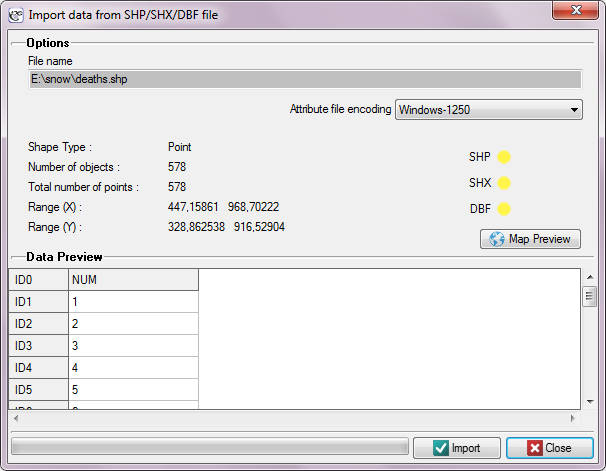
In the import window we can preview the imported map and its attributes saved in a DBF file. If the directory from which we import contains all files necessary for loading the map then the correct reading of appropriate files is confirmed in yellow by proper controls. Attributes ascribed to a shapefile, in the form of a DBF database, are not required for proper loading of a map. An attribute table can be completed after a map file has been loaded, by filling in proper cells of the datasheet linked with the map.
MAP MANAGER
The Map Manager is a tool for managing a map and the layers ascribed to the map. It is possible to view both maps imported to the PQStat program and maps opened directly from an SHP file.
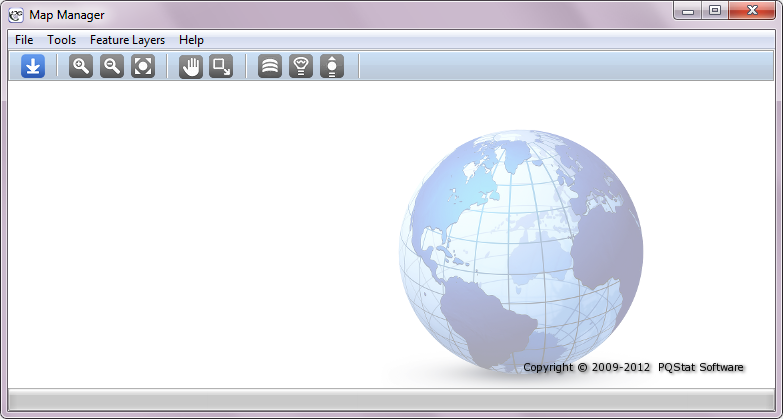
The Map Manager is activated through the:
- menu Spacial analysis\(\to\)Map Manager,
- buttonon the tool bar,
- context menu Map Manager on the name of a datasheet linked to the map.
A map can be opened with the help of the Map Manager:
- menu File\(\to\)Open file... –if we open a map from a shapefile (SHP),
- menu Plik\(\to\)Project maps or buttonon the tool bar –if we open a map from the PQStat program,
or in the Navigation tree of the PQStat program:
- context menu Map Manager on the name of the datasheet linked to the map.
The image which presents a map can be exported to a file in the BMP, PNG, or JPG format, by choosing, in the Map Manager window:
- menu File\(\to\)Export view....
Map Viewing Tools
Zoom in  –allows to view a map in a larger scale and see its details;
Zoom out  –allows to view a map in a smaller scale and see all its parts;
Adjust to the window  –allows such a view of a map that the whole image is displayed in a window;
Select  –allows to choose a rectangular part of a map, which will be enlarged and adjusted to the window size;
Grabber  –allows to move the image in the browser window so as to place a given part of the image in a chosen position.
As we are browsing the map we also get a tooltip concerning the ID and the name of the object we point to with the cursor. The name is loaded from the data sheet, it is the variable indicated as active in the Map manager. By default, during import the first variable of the text type is set as active.
We can get more information about the object pointed at by choosing the option Identify from the context menu. In the identification window it is also possible to Activate/Deactivate object.
Selection Area Tools
Creating and saving a selection area allows to choose parts of a map which can later be subjected to a separate analysis.
- Creating a Selection Area
To select and save a selected area we choose Tools\(\to\)Create selection area. Then, using the mouse or filling in the fields in the upper part of the Map Manager window, we select the chosen part of a map (elliptical or rectangular shape). The selection is saved with the use of the button Save.- Edition of a Selection Area
The placement of each selection area which was saved can be changed. In the edition window we can also delete a selection area.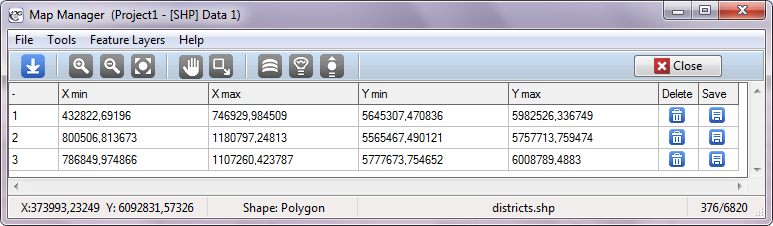
That window is opened with the help of the menu Tools\(\to\)Edit selection area, and closed with the use of the button Close.
- Deleting All Selection Areas
All selection areas can be deleted with the use of the menu Tools\(\to\)Delete all selection areas.
Layers
Both a map and elements added to it form layers. Layers are organized so that they only contain information about objects of one type. The use of layered organization enables easy modification of only selected objects.
The basic layer is the base layer containing a map. We can add new elements to that layer by creating new layers.
- Adding Layers
–to draw objects on subsequent layers choose the menu Feature Layers\(\to\)Add Layer.
- Layer –Result of statistical analysis
It is a layer created together with a report on the statistical spatial analysis. It presents the result of the statistical analysis, appended to the report. The information about the existence of layers one can draw on the map can be found at the bottom of the report (the button ). The layer can also be added with the button
  in the Map Manager window.
As long as there are no reports on statistical spatial analysis, the option window for analysis results is empty. When there are such reports the option window contains a list of layers. The names of the layers on the list consist of the name of the report from which a layer comes, together with the date and hour the report was created, and a description of the type of objects drawn there. - Layer –View of another map
That is a layer which presents a map related to another datasheet (the button in the Map Manager window). The map view can be a single layer or it can consist of a number of layers. It cannot be edited directly. The change of the look of the view is only possible when particular layers forming that view and placed in a real location (i.e. linked to another datasheet) are edited.
As long as there is only one datasheet related to a map in the project, the option window of another map is empty. When there are several datasheets the option window contains a list of layers. The names of the layers on the list comprise the number and name of the datasheet linked to the map and the name of the file from which the map was imported.
If the map is appended with a map view from another datasheet in such a way that a circular reference is made (e.g. map 2 is assigned a view of map 1, and map 1 is assigned a view of map 2), then a message is displayed about a circular reference. The reference will be managed but circular references are not advised. - Layer –Centroid of a polygon –that is a layer of the point type.
A centroid of a polygon is a point lying within a polygon and representing the center of mass (O'Rourke J (1998)[10]).
Centroids can be drawn on the basis of calculations made on the map –in such a case we choose the option Draw and calculate based on map data, or on the basis of existing points the coordinates of which are in the datasheet –we then choose the option Draw based on the datasheet. - Layer –Center of a polygon –that is a layer of the point type.
A center is a point with coordinates of the X axis and the Y axis calculated as a mean from the coordinates of points constituting polygon vertices.
Centers can be drawn on the basis of calculations made on the map –in such a case we choose the option Draw and calculate based on map data, or on the basis of existing points the coordinates of which are in the datasheet –we then choose the option Draw based on the datasheet. - Layer –Label for an object –that is a layer of the text type.
A label is any text or number concerning objects presented on a map. Objects can be described by choosing from the datasheet a variable which contains proper labels. - Layer –Bounding types –that is a layer of the polygonal type.
Min. Bounding - convex hull –that is the smallest convex polygon in which analysed objects are enclosed (Yamamoto J.K. 1997 [17]);
Min. Bounding - rectangle –that is the smallest rectangle in which analysed objects are enclosed;
Min. Bounding - circle –that is the smallest circle in which analysed objects are enclosed;
Rectangle from map bounding –that is a rectangle in which analysed objects are enclosed, with coordinates of the lower left-hand vertex = (\(\min X\), \(\min Y\)) and of the upper right-hand vertex = (\(\max X\), \(\max Y\)).
- Layer –Result of statistical analysis
- Layer List
–the layer list allows to check how many visible layers constitute the received image (button
 on the tool bar).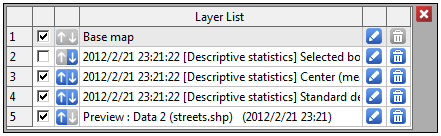
The list also allows switching on and off visibility of a layer and changing the order in which layers are added
 , editing the layers
  , and deleting them
  . If the source of a layer (a report or a map linked to the layer) is removed then such a layer is automatically removed from the layer list.
Map Style Edition
We can edit map layers by choosing the button in the map list. The manner of editing depends on the type of objects presented on a given map (points, multipoints, lines, polygons). It is possible to select the style of lines, color fill, and the level of its transparency. By default the coloring utilizes one color only. In the case of layers representing the base map there is a number of coloring methods.
Coloring Methods:
- Full color
–when this method is used, all objects will be colored with the use of the same method –with the use of one color only (the button Fill).
- Color gradation
–when this method is used, objects will be colored according to the value assigned to them in a selected datasheet variable (the button Color gradation). For example, when coloring a map which shows altitude, color shade for points lying higher will be different from that for points lying lower. The variable according to which we will do the coloring should only contain numerical values. If that is not the case then the object for which there is no numerical value is not colored according to the coloring method chosen for that variable but has the default color for the map.
Methods for variable breaks used in color gradation:- Natural Breaks (Jenks) –a method in which a variable is broken into such classes that variance in classes is minimized and variance among classes is maximized.
- Quantile Breaks –a method in which a variable is broken into classes with an equal number of units.
HOW TO REDUCE A WORKSPACE).
Workspace is limited for the purpose of indicating only those objects which will be subjected to the analysis. Such objects are indicated in the program by activating or deactivating them. Inactive objects are not subjected to statistical analyses.
- Manual activation/deactivation of objects
- Indicating a row in the data sheet which describes the appropriate object and selecting the option Activate/Deactivate from the context menu on its name;
- Indicating an object on the map and selecting, from the context menu, the option Activate/Deactivate or Identify \(\to\) Activate/Deactivate object.
- Automatic activation/deactivation of objects
- Selecting objects on the basis of data sheet – for example, one can indicate as active only those shops which are groceries with an area not larger than 1000m2. In such a case, the setting of appropriate conditions for selecting objects takes place in the window of Activation/Deactivation available after selecting the Edit \(\to\)Activate/Deactivate (filter)... menu. A detailed description of the manners of selection of that type can be found in the User Manual - PQStat (Chapter: How to Reduce Data Sheet Workspace).
- Selecting objects on the basis of a map – for example, one could only distinguish those shops which are within a rectangular or elliptical area marked on a map. We select the area with the use of the selection area tools (see Chapter Selection Area Tools) and later activate or deactivate in the window Activate/Deactivate in the selection available after selecting the Tools \(\to\)Activate/Deactivate in the selection menu in the window of the Map manager.
In order to activate all objects one should select the Tools \(\to\)Activate all menu in the window of the Map manager or the Edit \(\to\)Activate all menu in the window of PQStat.
GEOMETRIC CALCULATIONS
Geometric calculations are formulas (read the User Manual - PQStat (Chapter: Formulas)). The formulas can pertain data which describe map geometry and data visible in a datasheet.
Formulas for data which describe map geometry - geometric/geographic functions
Data for transformation are chosen from a shapefile (SHP)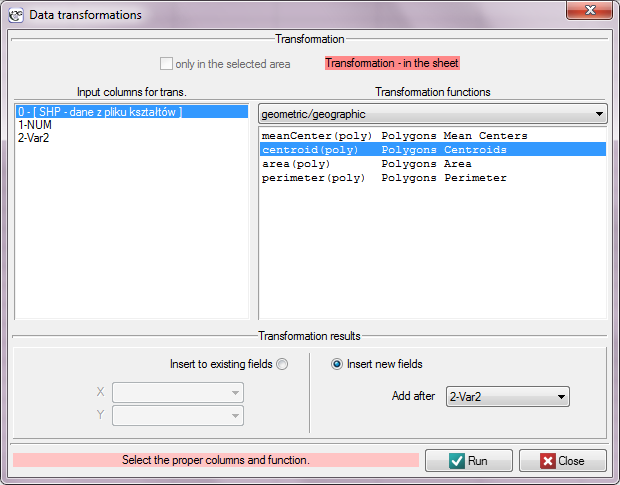
Available formulas:
meanCenter (poly) - gives center coordinates for polygons,
centroid (poly) - gives centroid coordinates for polygons,
area (poly) - gives polygon areas,
perimeter (poly) - gives polygon perimeters.- Formulas for data visible in a datasheet - creating maps
Available formulas:
map (points) - gives a vector map presenting points together with assigned datasheet.
SPATIAL WEIGHTS MATRIX
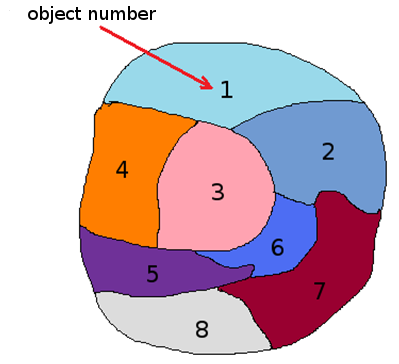
Spatial relations among objects presented on a map can be organized in the form of a matrix. The matrices are called weights matrices. Due to their large size and a great amount of detailed information, weights matrices are not carriers of knowledge which could be presented directly in the results of a conducted study but they form the basis of further analysis. The data included in the matrices are usually treated as weights in spatial analyses and, in this manner, allow to use the information from the map.
The simplest form of a weights matrix is a neighbor matrix. Neighbor matrix is a square table with zeros on the main diagonal, where the neighborhood of objects is marked with a binary value (1 – for neighboring objects, 0 – for non-neighboring objects).
 | no | 1 | 2 | 3 | 4 | 5 | 6 | 7 | 8 |
| 1 | 0 | 1 | 1 | 1 | 0 | 0 | 0 | 0 | |
| 2 | 1 | 0 | 1 | 0 | 0 | 1 | 1 | 0 | |
| 3 | 1 | 1 | 0 | 1 | 1 | 1 | 0 | 0 | |
| 4 | 1 | 0 | 1 | 0 | 1 | 0 | 0 | 0 | |
| 5 | 0 | 0 | 1 | 1 | 0 | 1 | 1 | 1 | |
| 6 | 0 | 1 | 1 | 0 | 1 | 0 | 1 | 1 | |
| 7 | 0 | 1 | 0 | 0 | 1 | 1 | 0 | 1 | |
| 8 | 0 | 0 | 0 | 0 | 1 | 1 | 1 | 0 |
In statistical analyses the most commonly used matrices are row-standardized matrices with the values of each of its rows summing to one. Row standardization means that each weight is divided by the sum of a row (the sum of the weights of all neighboring elements). As a result, the obtained weights are in the range from 0 to 1. The influence of objects with varying numbers of neighbors, in analyses based on a weights matrix standardized in this way, is balanced.
| no | 1 | 2 | 3 | 4 | 5 | 6 | 7 | 8 |
| 1 | 0 | \(1/3\) | \(1/3\) | \(1/3\) | 0 | 0 | 0 | 0 |
| 2 | \(1/4\) | 0 | \(1/4\) | 0 | 0 | \(1/4\) | \(1/4\) | 0 |
| 3 | \(1/5\) | \(1/5\) | 0 | \(1/5\) | \(1/5\) | \(1/5\) | 0 | 0 |
| 4 | \(1/3\) | 0 | \(1/3\) | 0 | \(1/3\) | 0 | 0 | 0 |
| 5 | 0 | 0 | \(1/5\) | \(1/5\) | 0 | \(1/5\) | 1/5 | \(1/5\) |
| 6 | 0 | \(1/5\) | \(1/5\) | 0 | \(1/5\) | 0 | \(1/5\) | \(1/5\) |
| 7 | 0 | \(1/4\) | 0 | 0 | \(1/4\) | \(1/4\) | 0 | \(1/4\) |
| 8 | 0 | 0 | 0 | 0 | \(1/3\) | \(1/3\) | \(1/3\) | 0 |
Selected weights matrices should reflect spatial relationships which connect the analyzed objects. The more realistic the reflection of the model of mutual influence of objects in space, the more exact results will be obtained.
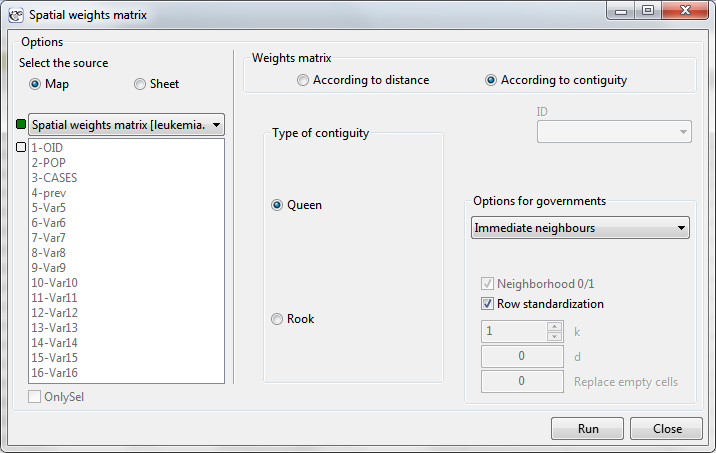
The window with settings for weights matrices is accessed via the menu Spacial analysis\(\to\)Tools\(\to\)Spatial weights matrix.
Weights matrix according to distance
For creating a weights matrix based on the distances of points we should have at our disposal data from a map which contains objects such as a point, a multipoint, or a polygon. In the case of an analysis of polygons, calculations are based on centroids, and in the case of multipoints they are based on centers of objects.
Description you can find in User Guide - PQStat, section: the similarity matrix.
Weights matrix according to contiguity
For creating a weights matrix based on proximity of objects (contiguity) we should have at our disposal data from a map which contains objects such as a multipoint or a polygon.
Type of contiguity
The contiguity is usually understood as a common section with a non-zero length (i.e. a section longer than 1 point) – it is the Rook type neighborhood, or as any section (also of zero length, i.e. a point) – it is the Queen type neighborhood.
Weights matrix according to contiguity:
Direct neighbors – it is a square symmetrical matrix in which on the main diagonal there are zeros, the elements outside the diagonal are:
\(w_{ij} = 1\) –- if the objects are connected along a common border,
\(w_{ij} = 0\) –- in the opposite case.
Neighbors (order of contiguity <=k) – it is a square symmetrical matrix in which on the main diagonal there are zeros, the elements outside the diagonal are:
\(w_{ij} = 1\) –- if the objects are direct neighbors (they are connected along a common border),
\(w_{ij} = 2\) –- if the objects are the second nearest neighbors (the second degree of neighborhood, i.e. the so-called neighbor's neighbor)
...
\(w_{ij} = k\) –- if the objects are the \(k^{th}\) neighbors (\(k^{th}\) degree of neighborhood)
\(w_{ij} = 0\) –- neighborhood is farther than the \(k^{th}\) degree.
Neighbors (order of contiguity =k) – it is a square symmetrical matrix in which on the main diagonal there are zeros, the elements outside the diagonal are:
\(w_{ij} = 1\) -– if the objects are the \(k^{th}\) neighbors (\(k^{th}\) degree of neighborhood)
\(w_{ij} = 0\) –- in the opposite case.
Weights matrices can be row standardized – it is the recommendation of some statistical analyses based on those matrices.
SPATIAL SMOOTHING
The idea of spatial smoothing is obtaining a better (more stable and less noisy) value of the variable. The most common methods of building such a variable are based on borrowing the information from neighboring areas or on using a larger amount of information from the studied region (L.A. Waller 2004 [14], Luc Anslin 2006 [2]). As a result, the values of the variable under study \(X\) with elements \(x_1,x_2,...,x_n\) will be transformed into a new, smoothed variable \(smooth(X)\) with elements \(smooth(x_1),smooth(x_2),...,smooth(x_n)\).
The researcher can control the analysis by selecting the distance/neighborhood matrix of the objects, setting the eigenpotential for the object to be smoothed, and indicating the smoothing method.
- Spatial weighting matrix
Information about the neighborhood of objects and their mutual distances is defined in the spatial weights matrix. If a neighborhood matrix is used for smoothing - carrying only information information about neighbors (1) or not (0), then only the objects neighbouring with the tested one will have an influence on the obtained result, and the size of this influence will be the same for all neighbors. When a researcher wants to gradate the size of this influence, he should choose a matrix with arbitrary positive values. At the same time, it is important to remember that a larger value in the weight matrix gives a greater influence on the smoothing result. Therefore, in order for closer objects to have a greater influence on the obtained result than distant objects, they should have a higher weight in the matrix. Such an effect can be achieved by using, for example, an inverse Euclidean distance matrix inside a circle of radius \(d\). Then, closer objects will have a greater influence on the resulting score than distant ones, and the influence of objects outside the circle will be zero.
For more extensive methods of constructing weight matrices, have a look at patial weight matrix and Similarity matrix.- Eigenpotential
The eigenpotential \(p\) of the smoothed object determines the amount of influence of information about the test object on the smoothed value for that object.- Eigenpotential value
The eigenpotential value sets the size of the elements placed on the main diagonal of the weight matrix. By default, the eigenpotential value is set to 1. If it is set to zero (\(p=0\)), the smoothed value of the tested object is calculated based only on the information contained in neighboring objects. On the other hand, increasing the value of the eigenpotential increases its share in the calculation of the smoothed value for that object. Potential value correction
The setting of the eigenpotential value alone determines the influence of the tested object on the obtained result, but it does not define by how much this influence is to be greater/lesser than that of the neighbouring objects (elements off the main diagonal of the weight matrix). The dependence of the value on the main diagonal of the matrix both on the given value of the potential and on the values of other elements of the matrix allows to determine the size of the influence of the tested object in relation to neighbouring objects. Correction of the potential value is given by the formula:\[ w_{ii}=p\cdot\sum_{j=1,j\neq i}^n w_{ij} \]As a result, selecting the potential value correction option and setting the potential value to magnitude 3, for example, ensures that the effect of information about the test object on the smoothed value for that object will be three times that of its neighboring objects.
- Eigenpotential value
- Methods
Locally weighted average
This transformation consists in calculating the arithmetic mean of the values of the variable \(X\) for the object under study (according to the potential) and its neighboring objects (according to the given weight matrix). The observed value \(x_i\) is transformed to a smoothed value \(smooth(x_i)\) according to the formula:\[ smooth(x_i)=\frac{\sum_{j=1}^n w_{ij}x_j}{\sum_{j=1}^n w_{ij}} \]where:
\(n\) –- number of spatial objects (number of points or polygons),
\(x_j\) –- are the values of the variable for the objects being compared,
\(w_{ij}\) –- elements of the spatial weight matrix.- Locally weighted median
This transformation consists in calculating the median of the values of the variable \(X\) for the object under study (according to the potential) and its neighboring objects (according to a given matrix of weights). In order to determine it a neighborhood matrix is necessary, where weights are binary values. The value of one in the matrix means neighboring objects and zero means no neighboring. Locally weighted average (corrected)
In the process of smoothing coefficients built on the basis of dividing two variables, determination of locally weighted average can be improved. The numerator and the denominator are smoothed and only then the quotient is created on the basis of these smoothed values. In this way, you can, for example, smooth the incidence rates determined in the course of epidemiological studies, where the numerator is the number of patients and the denominator is the size of the exposed population. In effect, objects with a larger population, will have a greater impact on the result of smoothing - therefore the denominator of the smoothed coefficient is called the adjustment variable.
The observed value of the \(\frac{x_i}{y_i}\) coefficient is converted to a smoothed value \(smooth\left(\frac{x_i}{y_i}\right)\) according to the formula:\[ smooth\left(\frac{x_i}{y_i}\right)=\frac{\sum_{j=1}^n w_{ij}x_j}{\sum_{j=1}^n w_{ij}y_j} \]where:
\(n\) –- number of spatial objects (number of points or polygons),
\(w_{ij}\) –- elements of the spatial weight matrix.Empirical Local Bayes Smoothing (corrected)
The method of local Bayes smoothing was developed as one way to deal with the instability of the coefficients associated with small data counts and was described in detail by Waller (2004 [14]). Smoothing aims to improve the locally weighted mean (adjusted) so as to reduce its variance.
The observed value of the \(\frac{x_i}{y_i}\) coefficient is converted to a smoothed value \(smooth\left(\frac{x_i}{y_i}\right)\) according to the formula:\[ smooth\left(\frac{x_i}{y_i}\right)_{Bayes}=smooth\left(\frac{x_i}{y_i}\right)+C_i\left(\frac{x_i}{y_i}-smooth\left(\frac{x_i}{y_i}\right)\right) \]where:
\(smooth\left(\frac{x_i}{y_i}\right)\) – locally weighted average (adjusted),
\(C_i\) –- shrink factor,
\(C_i=\frac{s^2-\frac{x_i/y_i}{\bar{y}_i}}{s^2-\frac{x_i/y_i}{\bar{y}_i}+\frac{x_i/y_i}{y_i}}\) jeśli \(s^2-\frac{x_i/y_i}{\bar{y}_i}>0\)
\(s_i^2=\frac{\sum_{j=1}^ne_{ij}}{\sum_{j=1}^ny_jw_{ij}}\)
\(e_{ij}=y_i\left(\frac{x_i}{y_i}w_{ij}-smooth\left(\frac{x_i}{y_i}\right)\right)\)
\(\bar{y}_i=\frac{\sum_{i=1}^ny_i}{n}\) –- is the average population size,
\(w_{ij}\) –- elements of the spatial weight matrix.The shrinkage factor balances the local average \(smooth(x_i/y_i)\) with the observed value of the coefficient \(x_i/y_i\). When the population size of the adjustment variable \(y_i\) is small, then \(C_i\to 0\) nd the estimated value is close to the locally weighted adjusted mean \(smooth(x_i/y_i)\). When the population size is large, then \(C_i\to 1\) and the estimated value approaches the true value observed at that site \(x_i/y_i\).