 PQStat
 AI: RESULTS INTERPRETER
The AI Interpreter turns the results table of a chosen analysis into a written description, drafted in the style of the Results section of a scientific publication – ready to paste into a paper or report, or for further editing by the user. The description is generated by a language model (AI) based on the report contents, the type of test performed, and (optionally) the researcher's own guidance.
How to run the interpretation
The interpreter is invoked for the active report in one of three equivalent ways:
- the Help\(\to\)AI: Results Interpreter menu,
- the report's context menu (right mouse button on the report) \(\to\) AI: Results Interpreter,
- the button
 on the report toolbar.
Performing and interpreting the analysis
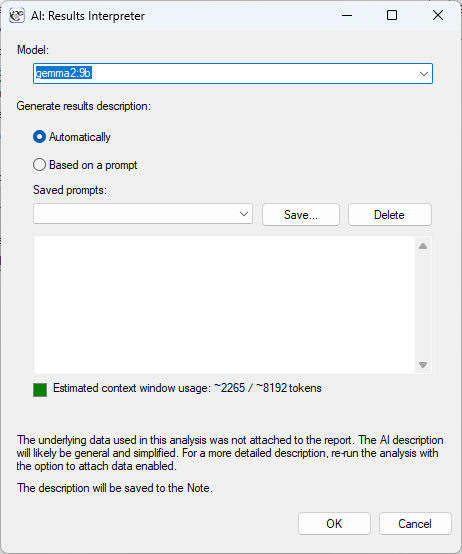
Example 1. After performing any statistical test (e.g. Student's t-test), we invoke the interpreter from the report's context menu and start the generation in Automatically mode.
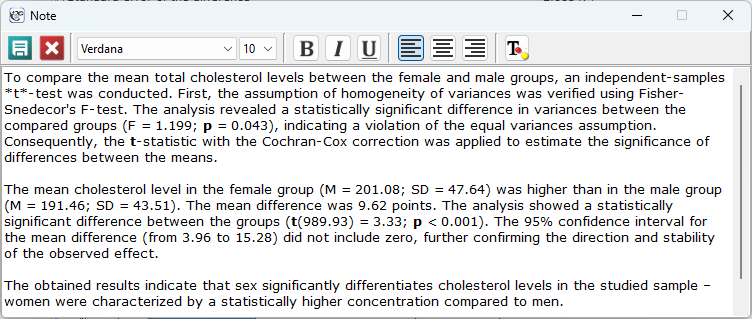
The generated description is placed in the report's Note window (visible in the report or in the project tree, marked with a note icon), where it can be freely edited, supplemented, or corrected before it is finally saved.
Batch interpretation of multiple reports
By selecting several items at once on the report list (the Batch view) and choosing AI: Results Interpreter from that list's context menu, descriptions for many reports can be generated at once, without an options window for each one individually – the interpretation then runs automatically, using the active model source settings from Settings.
Conversation with the model from the note
The generated description need not be the end of the work with the model. In the report's Note window, below the note text field, there is a conversation panel: a field for the next question, the Ask button (or the Ctrl+Enter shortcut) and the New conversation button. The question is sent to the model together with the report and the whole conversation so far (the previous questions and answers), so the model "remembers" its previous answer – one can ask for an explanation of a fragment of the description, for shortening it, for a change of style, for a reference to a specific value in the table, etc. The answer is appended at the end of the note (preceded by the question text), where it can be edited just like the original description. The conversation history is saved in the project together with the report, so the conversation can be resumed after the file is reopened; the panel appears only in the notes of reports for which an AI description has been generated.
Because the whole conversation is sent to the model with every question, its length grows with each turn. Below the question field an indicator of the model's context window usage is shown (green, orange or red – as in the interpreter options window), taking into account the report, all previous questions and answers, and the question currently being typed. When the conversation no longer fits into the context window, the program warns before sending, and the New conversation button allows starting over: the model then receives only the report and the new question again, while the note text remains unchanged. Subsequent questions are directed to the active model source from Settings; a chart attached to the first request is not sent again.
Procedure: the description is generated from three elements combined into a single prompt passed to the model: (1) shared rules for drafting the result (Results-section style of a scientific publication, a ban on guessing values not present in the table, avoiding phrases such as "we reject the null hypothesis"), (2) instructions specific to the particular type of test performed, and (3) the content of the results table itself, together with variable metadata (value labels), if available. The researcher's own prompt – if given – takes precedence over the rules above, including with regard to the response language.
If the option to echo the raw data was attached to the report, only a sample (up to the first 10 rows) is passed in the prompt, so as not to overload the model's context window.
The conversation from the note uses the same interfaces (Ollama, LM Studio, OpenAI-compatible API), which are stateless: the server does not remember previous requests, so with every question the program sends the first prompt (with the report) and all the previous question–answer pairs anew. The model "sees" the earlier conversation only because it is attached to every subsequent request; hence the growing context window usage and the purpose of the New conversation button.