 PQStat
 PROGRAM OPERATION
Work in the PQStat program is based on projects - each project is a single file. A project works similarly to a workbook (notebook) and contains 3 basic elements:
- Datasheets (including map sheets and matrices) - a single project can hold up to 1000 of them,
- Result sheets (reports) - a single datasheet can produce up to 2000 of them,
- Project manager - a window in which you rename datasheets and result sheets, add your own descriptions and notes, and export the contents of the project.
Up to 255 projects can be worked on simultaneously. The first project with an empty data sheet is opened automatically when you start the program, if this option is set in the Program Settings window.
Further projects can be created via the menu
- File\(\to\)New project (Ctrl+N) 
- File\(\to\)New datasheet (Ctrl+D) 
Created projects (files with pqs, pqx extensions) we open via:
- File\(\to\)Open project (Ctrl+O) 
- File\(\to\)Open examples  - applies to examples that come together with the program,
- dragging the project file into the application window,
- double-clicking the project file.
The project can be saved via:
- menu File\(\to\)Save project(Ctrl+S) 
- File\(\to\)Save project as... 
- Save project button in the Project Manager.
Saving a project saves all project components to a file with the extension pqs or pqx.
The project can be closed via:
- menu File\(\to\)Close project 
- Close project button in the Project Manager.
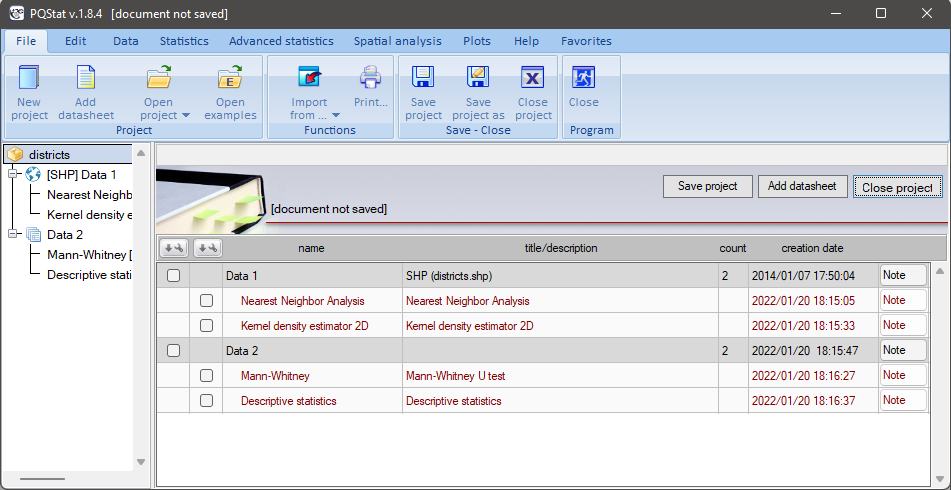
For easy navigation, the Project Manager is displayed after selecting the appropriate project. In this window you can save as well as delete the selected project, add or delete a datasheet, delete a result reports as well as add notes. The project name is also the name of the project file (pqs/pqx).
WORKING WITH DATASHEETS
The most important part of any project is the datasheet. Every open project must have at least one.
ADDING, REMOVING AND EXPORTING DATASHEETS
The first blank datasheet is opened automatically with a new project.
Subsequent datasheets can be added to the project via:
- menu File\(\to\)New datasheet (Ctrl+D)
- New datasheet button in the Project Manager.
Datasheets can be deleted via:
- context menu Delete Sheet (Shift+Del) on the name of a datasheet in the Navigation tree,
-  button \(\to\)Delete in the Project Manager, if a datasheet is selected.
Datasheets can be described in the Project Manager by adding a name, title or a note.
Data sheets created in PQStat can be exported to csv (txt) , dbf and xls formats. Exporting data is done in the Project Manager via the button\(\to\)Seve Sheet to..., if a datasheet is selected.
INPUTTING DATA INTO A DATASHEET
The datasheets are empty when created. The user enters data themselves, copies previously prepared data from another data sheet, or imports it. The amount of data a worksheet can hold is limited to 4 million rows and 1000 columns. Each cell can contain a maximum of 40 characters.
IMPORTING DATA
Data can be easily imported from files saved in formats such as:
- *.xls/*xlsx,
- *.txt/*.csv with internal character encoding UTF8, Windows-1250,
- *.shp (SHP/SHX/DBF ESRI Shapefile),
- *.dbf (dBase III, dBase IV, dBase VII),
- *.sav (SPSS),
- *.dbf (FoxPro).
To import click menu File\(\to\)Import from ... 
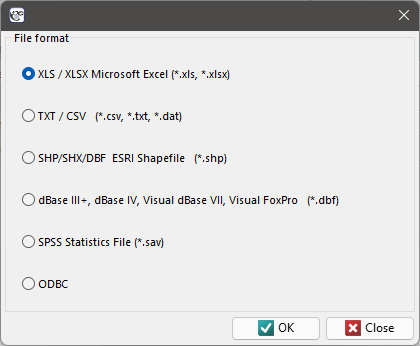
In the import window you can preview the imported data and check the result of the import in advance, depending on the set options for data interpretation. It is worth checking that special characters are displayed correctly in the preview - this helps you avoid misinterpretation of the encoding. For large files, the preview window contains only the initial portion of the file data.
Copying data with relation
Data from another worksheet can be copied into the selected data sheet based on relations. This type of data copying is performed by selecting menu: Data\(\to\)Copying with relation... 
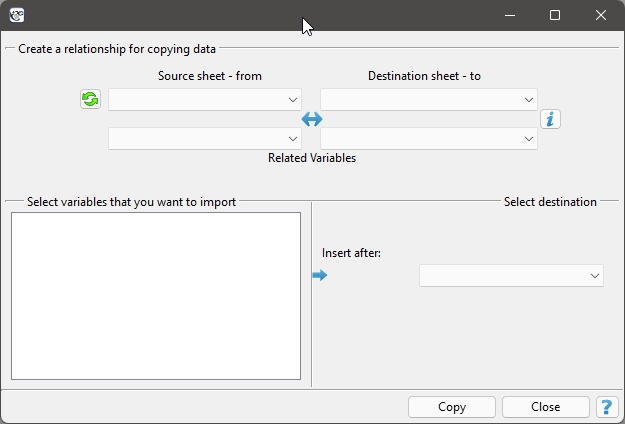
To build a relation, you must specify the data sheet from which you are copying and the data sheet in which you will place the copied data. Both of these datasheets must have the same key, i.e. a variable which values identify each row in the datasheet. It is required that the key for the source sheet is unique. Linking is done on a one-to-many basis, which means that one row in the source datasheet can be linked to multiple rows in the target datasheet. The keys of both datasheets should be selected as Related Variables. For such a relation, indicate the variables to be copied and the column after which to place the copied variables.
DATASHEET WINDOW
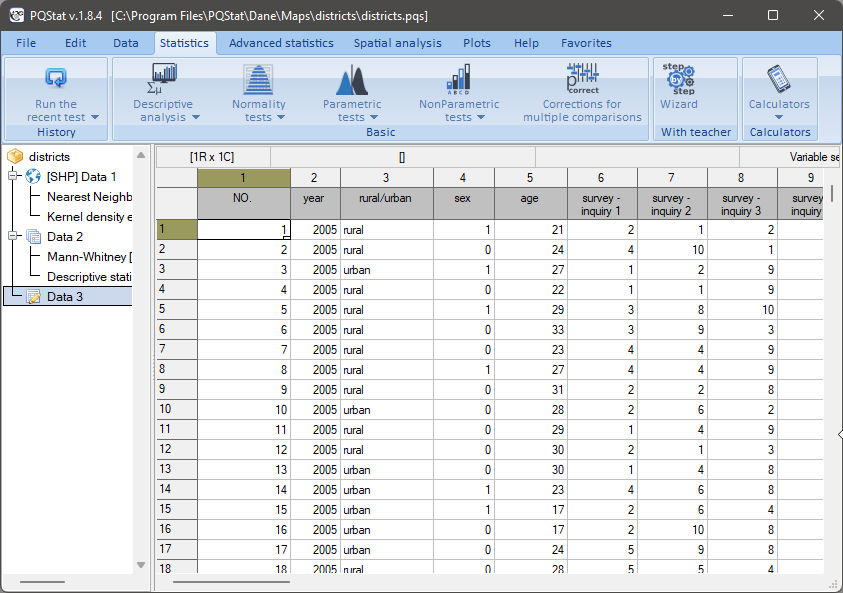
The rows and columns of the datasheet are indicated by consecutive natural numbers. Each column in the space marked in gray can be given its own heading. At the top of the datasheet is the Message bar. This is where the current user information is displayed. The left part of the bar informs about the size of the selected area [number of rows, number of columns], the middle part displays the value located in the selected cell, and the right part is for the user's information concerning, for example, the statistical analysis being performed.
VARIABLE PROPERTIES
For each column of the worksheet, we can set its properties such as codes, labels and format. Setting the properties of a variable is possible by
- selecting Variable Properties \(\to\) Codes/Labels/Format from the context menu on the number above the column header,
- by double-clicking on the number above the column header - if it was specified in the program settings (corresponding double-click action).
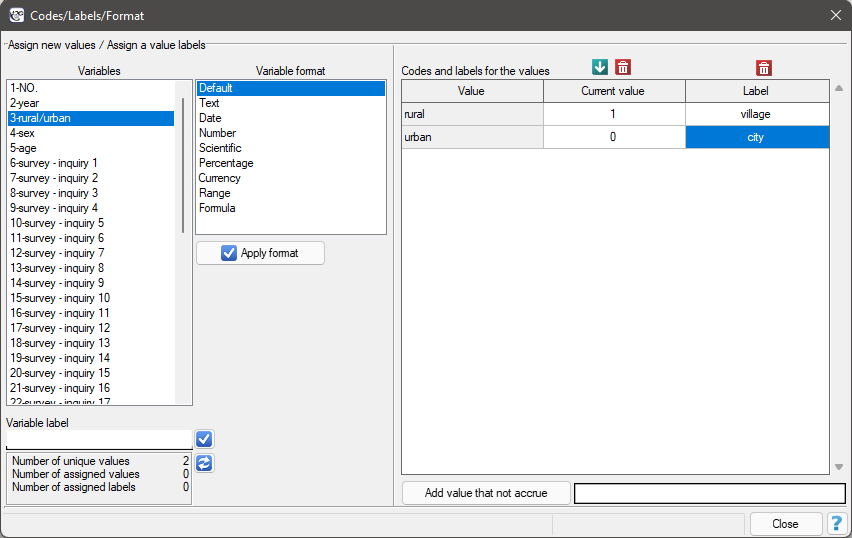
Codes and labeles for the values – are assignable to each value in the column.
Current value - By filling in the codes we set the values to be valid in the given column. As a result the values taken for calculations will be changed (in the background) to assigned codes (valid values).
Label - The values you enter under Lable are used in reports and charts for the user-defined result report.
Variable label - is assigned to the header of a given column. This is usually a brief description of the variable's contents. The variable label is used instead of the column header (variable name) in reports and charts for clearer description of the results. The use of the variable label is optional and depends on the program settings.
Variable format
Each worksheet cell (including a column heading) may contain a maximum of 40 characters. Texts containing national characters are also allowed. Entered values can be formatted as:
- default - default format is a format in which the program automatically recognizes the contents of the cell in the range - numeric data, text data;
- text - in text format, data are interpreted as text (alignment to the left edge of the cell);
date - In date format, numeric data is interpreted as consecutive date values, so value 1 means 1899.12.31, value 2 means 1900.01.01 etc. Depending on the selected date format, you can also enter data in text format, these are:
2010.12.31
31.12.2010
12.31.2010
2010/12/31
31/12/2010
12/31/2010
2010-12-31
31-12-2010
12-31-2010
Monday...
January...For the format Monday..., the value 1 indicates Monday, ..., 7 indicates Sunday, for the format January..., the value 1 indicates January, ..., 12 indicates December.
time - In the time format, numeric data is interpreted as consecutive time values, the fractional part of the number means the number of milliseconds since midnight divided by the total number of milliseconds of the day (86400000), so the value 0.000694444 means 00:01:00, the value 0.041666667 means 01:00:00, the value 0.999988426 means 23:59:59. Depending on the selected time format, it is also possible to enter data in text format, these are:
18:31:58
18:31
12/31/2010 18:31
12/31/2010 18:31:58- numerical - real numbers in this format are in decimal form with either a comma or a period separating the whole from the fraction (depending on the settings you have chosen in Settings in Decimal Separator), you can set the number of decimal places and the thousandths separator;
- scientific - that is, \(M \cdot 10^E\), where the base is the mantissa of \(M\), and the exponent \(E\) is an integer; that is, using M times 10 to the power of E, where the base is the mantissa of M and the exponent E is an integer; just as in numerical format, it is possible to set the number of decimal places;
- percentage - changing a number to a percentage by multiplying it by 100 and displaying it with the % symbol; as in numeric format, it is possible to set the number of decimal places;
- currency - are used for monetary values - this allows you to add a currency symbol; as in the numeric format, it is possible to set the number of decimal places;
- range - written with upper and lower limits; as in the numeric format, it is possible to set the number of decimal places;
- formula - values calculated according to the formula assigned to the column; the value is automatically recalculated when any of the input data is changed.
When you open a new sheet, a default format is set for each cell.
The entire header row is permanently set to text format. User-defined formats can be set for the rest of the sheet. Formatting is not done for a single cell, but for the entire column (except for its header).
In the worksheet, you can specify the column width using the mouse. To do this, use the mouse pointer to drag a line dividing the columns, narrowing or widening the column to the left of the selected line.
Additionally, you can set a different background color in each cell of the worksheet (after selecting the area to be changed). You can do it via:
- menu File\(\to\)Fill color ...
- command Fill color in the cell's context menu.
EDITING DATA
Selection of a consistent area in a worksheet can be done with mouse or keyboard (Arrow keys + Shift). During selection, the size of the selection (number of rows and columns) is continuously displayed in the message bar. You can select the entire worksheet by simply clicking in the upper left corner of the worksheet with the mouse, or by selecting menu Edit\(\to\)Select all (Ctrl+A). Whole rows or whole columns are selected by selecting their headers.
Copying or moving cells is done through the copy, cut and paste commands.
The copy, cut and paste commands are available in several places:
- in menu Edit,
- in the context menu of cells,
- on the toolbar 

 ,
,
- in the context menu for rows and columns,
- via hotkeys: copy (Ctrl+C), cut (Ctrl+X), paste (Ctrl+V).
Deleting data from cells can be performed via menu Edit\(\to\)Delete (Del)
Undoing the most recently performed operation can be done via menu Edit\(\to\)Undo (Ctrl+Z). By default, the Program remembers the last 10 operations involving 5000 cells in each cell. You can change these settings in the Settings window. It should be noted, however, that increasing these values results in greater use of computer memory by the program.
Inserting and deleting rows and columns
You can insert blank rows or columns above or to the left of an existing row or column. This will move the cells down or to the right. To insert a row(s), select the row(s) above which you want to insert a new row(s), and then choose Insert row from the context menu on the selected row number. Inserting columns is done in the same way.
Rows and columns can also be deleted by selecting them and choosing Delete row/Delete column from the context menu in the row or column number..
Finding/replacing a cell value
[0.3cm] To find or replace the entire contents of a cell with another value, use the Find/Replace window, which is accessible via menu Edit\(\to\)Find/Replace (Ctrl+F)  .
.
The upper part of the Find/Replace window is used for searching and the lower part is used for replacing cell values.
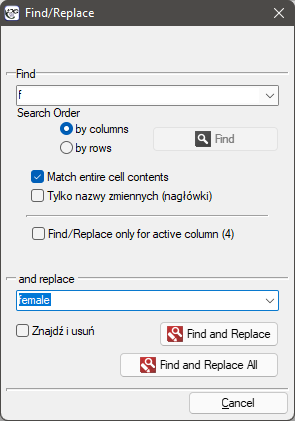
To search for data, enter a search string in the upper part of the window, select the search order and choose the Find button.
To find and replace the entire contents of a cell with another value, fill in the upper and lower parts of the window. Fill in the upper part of the window as you would for a data search. In the lower part of the window type the data that you want to replace and choose Find and Replace or Find and Replace All when you want to replace all the occurrences of the searched data. Searching as well as replacing is done in direct view mode of the operations performed on the sheet.
SORTING DATA
 Sorting options are available by selecting menu Data\(\to\)Sort... or Sort... functionality from the context menu on the number above the column header. Normally you sort the whole datasheet (this is the default setting for sorting), but if you start sorting by selecting a piece of data, then in the sorting window you will have the option to limit the sorting area only to the selection.
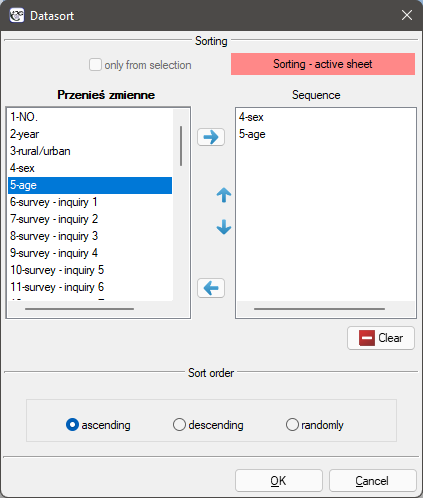
In the sorting window, use the arrows to move from the Move Variables box to the Sequence box those variables by which you want to sort the data, then select Sort Order and confirm your selection by pressing the Ok button.
You can sort by at most 3 columns (variables). If you sort data by more than one variable, sorting is done in the order in which the variables are placed in the Order box.
CONVERTING RAW DATA INTO A CONTINGENCY TABLE
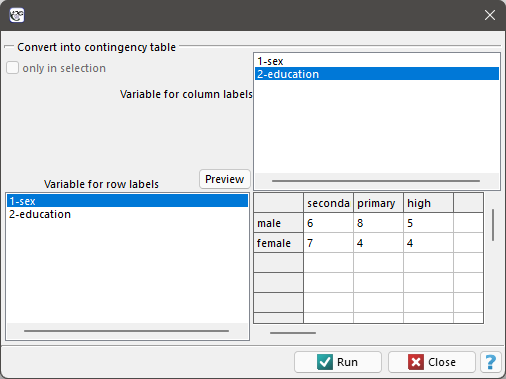
 The operation of changing raw data into a contingency table is available after selecting menu Data\(\to\)Create table... Normally, the entire data sheet is available for this operation (this is the default setting), but if you start the transformation by selecting a piece of data, then in the data transformation window you will have the option to limit the available area to the selection only.
You design the contingency table by selecting the variables that form the row and column labels. If the preview of the table is consistent with the expected result, confirm your choice with Run. The returned result will be placed in a new sheet.
CONVERTING A CONTINGENCY TABLE INTO RAW DATA
 The operation of changing a contingency table into raw data is available after selecting menu Data\(\to\)Create raw data... In the data transformation window, enter the appropriate numbers and row and column headings and confirm your choice with Run. The returned result will be placed in a new sheet.
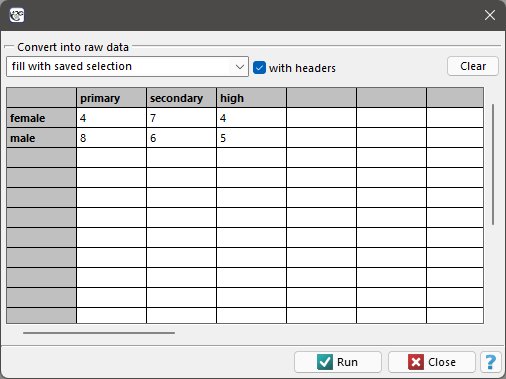
If we are converting a table that is in the data sheet, then we select that table (with or without headers) before converting it to raw data. This table will then be automatically placed in the data transformation window. It is also possible to use other tables marked as fill with saved selection.
RESHAPING DATA BETWEEN THE WIDE AND THE LONG FORMAT
The same measurements can be arranged in a sheet in two ways:
- wide format – one row is one object (e.g. a patient) and the consecutive measurements of that object (e.g. before treatment, after one month, after one year) are stored in consecutive columns; this is the layout used e.g. by the ANOVA for dependent groups and the tests for dependent groups,
- long format – one row is one measurement; the object is described by an identifier column (repeated as many times as it has measurements), next to it there is a column with the name or number of the measurement and one common value column; this layout is required by mixed models and by most analyses in which a measurement is a separate observation.
An example of the same data in both formats:
| wide format | |||
| ID | sex | before | after |
| 1 | F | 120 | 112 |
| 2 | M | 135 | 130 |
| long format | |||
| ID | sex | variable | value |
| 1 | F | before | 120 |
| 1 | F | after | 112 |
| 2 | M | before | 135 |
| 2 | M | after | 130 |
Both conversions are available in the Data menu. The result is always placed in a new sheet of the project and the source sheet stays unchanged. Deactivated rows and hidden columns are skipped, as in the statistical analyses.
An example of data from the cisnienie.pqs file, where we examine two types of drugs (A and B) and blood pressure at consecutive visits: Wide format:
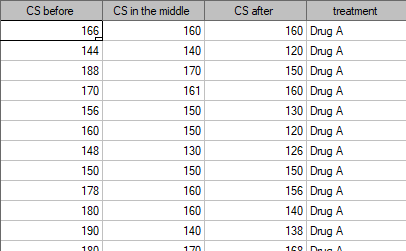
Long format:
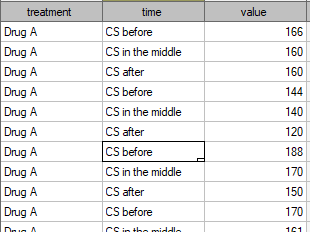
Wide \(\to\) long format
The command Data\(\to\)Reshape: wide \(\to\) long... stacks the selected columns one below another (example file: pressure.pqs).
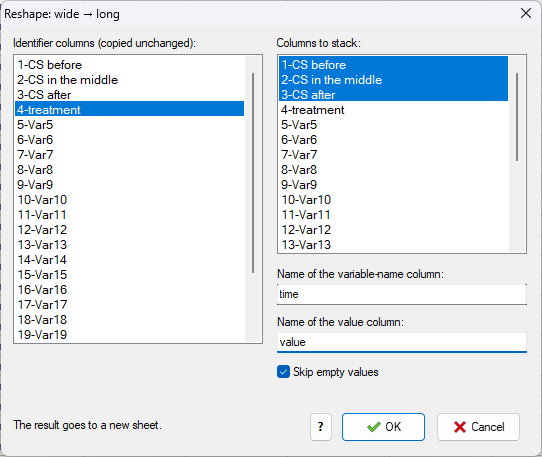
In the reshape window we indicate:
- Identifier columns – columns describing the object (e.g. identifier, sex, group) that are to be copied unchanged and repeated in every row produced from the same object; their selection is optional,
- Columns to stack – columns with the measurements; at least one must be selected and the same column cannot be both an identifier and a value column,
- Name of the variable-name column (by default
variable) – this column will hold the name of the source column the value comes from, - Name of the value column (by default
value), - Skip empty values – when checked (the default) measurements without a value produce no rows; when unchecked every object gets exactly as many rows as there are selected columns and missing values remain empty cells.
Confirm with OK. Each source row yields as many rows as there are stacked columns and the rows are ordered object by object, in the order of the selected columns. Column names in the new sheet are automatically made distinct if they would repeat.
0, 1, 12) or to recode them afterwards with formulas.Long \(\to\) wide format
The command Data\(\to\)Reshape: long \(\to\) wide... spreads one value column into several columns, one for each variable name.
In the reshape window we indicate:
- Identifier columns – columns whose common combination of values defines one object (e.g. the patient identifier, or the identifier and sex); all rows with the same combination are merged into one wide-format row; when no column is selected every source row stays a separate row,
- Column with variable names – each unique value of this column becomes a separate column of the new sheet (in the order of first appearance in the data); rows with an empty name are skipped,
- Column with values – its content fills the new columns.
The variable-name column and the value column must differ and cannot be identifier columns at the same time. Confirm with OK. The new sheet contains the identifier columns (values from the first occurrence of the object) and the columns created from the variable names; combinations for which there was no measurement in the data remain empty cells.
name_2, name_3, …placed next to it. The program reports the number of such repetitions. If the further occurrences should be distinguished differently (e.g. by the visit number), add the corresponding column to the identifiers.FORMULAS
 Defining a formula is a way to recalculate data, resulting in new values in variables.
The window for defining formulas is opened via Data\(\to\)Formulas...
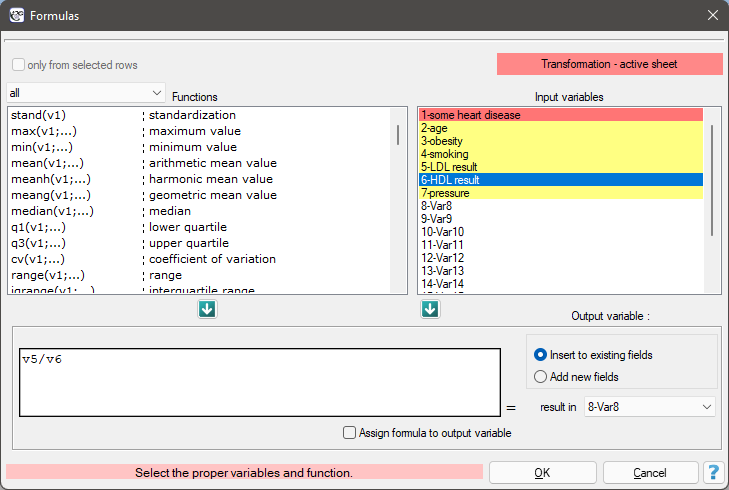
Formulas assigned to a datasheet variable as the format of that variable are stored with the worksheet data. Their result is automatically recalculated when any of the input data is changed. Formula can be assigned in th Formula... window or by setting the Column format (Ctrl+F10).
Creating formulas
Formulas are entered in the edition box.
- The variables referred to in the formulas are entered with their numbers, e.g
v1+v2 - Text values are entered using an apostrophe, e.g. 'house'.
- You can enter functions by double-clicking on the name of the selected function - then the name will appear in the formula edition box, or you can enter the name yourself in the edition box, though the function name is case-insensitive. The function arguments are given in brackets using the syntax given in the function description.
Results of formulas
The results of formulas will be displayed in the selected column.
If the function's arguments include values that it cannot interpret, the program displays a message asking whether to ignore the uninterpreted variables. If you choose Yes, the formula will be recalculated by omitting the unexpanded data. If you choose No, the formula returns error (NA). For example, for the values in columns v1, v2 and v3 respectively: 1, 2, 'ada', the sum function sum(v1;v2;v3) will return a result of 3 - when omitting the uninterpreted value 'ada', or will return NA - when not omitting this value from the calculation.
An empty value (no data) will be returned only if all arguments used in the formula are empty.
You can limit the number of rows involved in a formula by selecting the appropriate number of rows in the datasheet and choosing only from selected rows in the formula window.
- Operators
\(+\) addition,
\(-\) subtraction,
\(*\) multiplication,
\(/\) division,
\(\%\) modulo division (resulting in the remainder of the division),
\(>\) greater,
\(<\) less,
\(=\) equal.- Mathematical functions
Mathematical functions require numeric arguments.
ln(v1) - outputs the natural logarithm of the given number,
log10(v1) - outputs the logarithm of the base 10 for a given number,
logn(v1) - outputs the logarithm of \(n\) for the given number,
sqr(v1) - outputs the square of the given number,
sqrt(v1) - outputs the square root of the given number,
fact(v1) - outputs the power of a given number,
degrad(v1) - outputs the angle in radians (the argument of the function is in degrees),
raddeg(v1) - outputs the angle in degrees (the argument of the function is in radians).,
sin(v1) - outputs the sine of the given angle, (the argument of the function is in radians),
cos(v1) - outputs the cosine of the given angle, (the argument of the function is in radians),
tan(v1) - outputs the tangent of the given angle, (the argument of the function is in radians),
ctng(v1) - outputs the cotangent of the given angle, (the argument of the function is in radians),
arcsin(v1) - outputs the arcus sine of the given angle, (the argument of the function is in radians),
arctan(v1) - outputs the arcus tangent of the given angle, (the argument of the function is in radians),
exp(v1) - outputs the value of the number \(e\) raised to the power specified by the given value,
frac(v1) - outputs the fractional part of a given number,
int(v1) - outputs the integer part of a given number,
abs(v1) - outputs the absolute value of the specified number,
odd(v1) - if given number is even, outputs 1, 0 otherwise,
sum(v1;...) - outputs the result of adding the specified numbers,
multip(v1;...) - outputs the result of multiplication of specified numbers,
power(v1;n) - outputs the result of raising a number to the power of \(n\),
norme(v1;...) - outputs the Euclidean norm of the vector,
round(v1;n) - outputs a number rounded to \(n\) decimal places.- Statistical functions
Statistical functions require numeric arguments.
stand(v1) - outputs the standardized value of the specified variable,
max(v1,...) - outputs the largest value,
min(v1,...) - outputs the smallest value,
mean(v1,...) - outputs the value of the arithmetic mean,
meanh(v1,...) - outputs the value of the harmonic mean,
meang(v1,...) - outputs the value of the geometric mean,
median(v1,...) - outputs the median value,
q1(v1,...) - outputs the value of the bottom quartile,
q3(v1,...) - outputs the value of the top quartile,
cv(v1,...) - outputs the value of the coefficient of variation,
range(v1,...) - outputs the value of the interval,
iqrange(v1,...) - outputs the value of the quartile interval,
variance(v1,...) - outputs the variance value,
sd(v1,...) - outputs the value of the standard deviation.- Text functions
Text functions work on any string.
upperc(v1) - converts characters from a string to uppercase,
lowerc(v1) - converts characters from a string to lowercase,
clean(v1) - removes characters that cannot be printed,
trim(v1) - removes leading and trailing spaces,
length(v1) - outputs the length of the string,
search('abc';v1) - outputs the position of the beginning of the searched text,
concat(v1;...) - combines texts,
compare(v1;...) - compares texts,
copy(v1;i;n) - returns a portion of text starting from the i-th character, where n is the number of returned characters,
count(v1;...) - outputs the number of cells that are not empty,
counte(v1;...) - outputs the number of cells that are empty,
countn(v1;...) - outputs the number of cells that contain numbers.- Date and time functions
Date and time functions should be used on data formatted as date or time (see chapter ↗). If this is not the case, the program tries to automatically recognize the format, and if not possible gives the value NA.
year(v1;) - outputs the year corresponding to the date,
month(v1;) - outputs the month corresponding to the date,
day(v1;) - outputs the day corresponding to the date,
hour(v1;) - outputs the time corresponding to the specified time,
minute(v1;) - outputs the minute corresponding to the specified time,
second(v1;) - outputs the second corresponding to the specified time,
yeardiff(v1;v2) - outputs the number of years separating two dates,
monthdiff(v1;v2) - outputs the number of months separating two dates,
weekdiff(v1;v2) - outputs the number of weeks separating two dates,
daydiff(v1;v2) - outputs the number of days between two dates,
hourdiff(v1;v2) - outputs the number of hours between the two times,
minutediff(v1;v2) - outputs the number of minutes separating the two times,
seconddiff(v1;v2) - outputs the number of seconds separating the two times,
compdate(v1;v2) - compares dates and outputs the number 1 when v1>v2; 0 when v1=v2, -1 when v1<v2.- Logic functions
if(question;'yes - answer';'no - answer') - a question is formulated as an expression that can be true or false; the function outputs one value if the expression is true and the other if it is false,
and - conjunction operator - returns true (1) when all conditions it combines are true, false (0) otherwise,
or - the alternative operator returns true (1) when at least one of its conditions is true, false (0) otherwise,
xor - disjunctive alternative operator - returns true (1) when one of the conditions it combines is true, false (0) otherwise,
not - negation operator used in a conditional statement if,
empty(v1) - outputs true (1) when empty cells are present, false (0) otherwise,
text(v1) - outputs true (1) when text is present, false (0) otherwise,
number(v1) - outputs true (1) when a number is present, false (0) otherwise.
DATA GENERATION
 There are two methods of data generation:
- The first method uses simple dragging of the contents from the selected cells to the neighboring cells using the mouse pointer. This method lets you generate the same values (text or numbers) in neighboring columns or rows.
To generate, start by selecting the cell with the appropriate data , then use the mouse pointer depicted by the \(+\) sign to grab the bottom right corner of that cell and drag through the cells you want to fill. Dragging a single cell can be done in any direction (up, down, left and right). It is also possible to drag different values placed in one column (left or right) or in one row (up or down). The second method generates numerical data in columns as data series, random values, and random values from an appropriate data distribution.
To generate numeric data, select the cell from which you want to start filling in the datasheet and open the numeric data generation window from the menu Data\(\to\)Generate...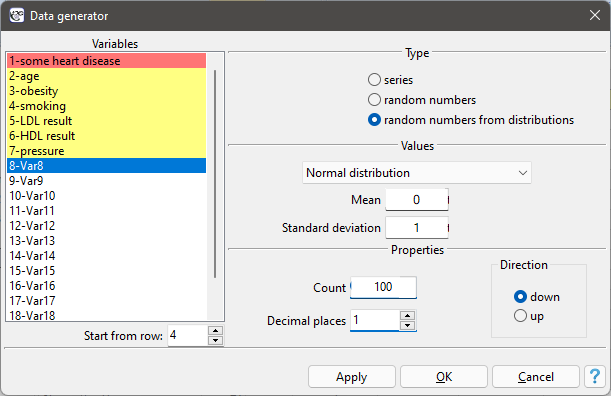
You start by selecting the variable in which the generated data will be placed.
In the middle part of the window, depending on the settings of the method of data generation selected above, we set:- For generating data series:
- Start value - the first value to be generated,
- Increment - the value by which the subsequent generated data is to vary. - For generating random values:
- Lower limit - the beginning of the interval from which the values will be randomly selected,
- Upper limit - The end of the interval from which the values will be randomly selected. - For generating random values from a distribution, select the type of distribution (Normal distribution, Chi-square distribution) and enter its parameters.
- For generating data series:
The amount of data generated depends on the value the user enters in the Count box, and the precision depends on the setting of the Decimal places box. The data will be filled in starting from the active cell in either down or up - depending on the selected option. Finally, confirm your selection with Apply.
MISSING DATA
 In research we very often encounter missing data, this is natural in particular for survey data. There are situations in which missing data provides valuable information. For example: the number of missing data items in response to a question about support for political parties gives an idea about the number of undecided people who do not like (or do not admit to liking) certain political groups. Small numbers of missing data are not a problem in statistical analyses. A large number of them, however, may cast doubt on the reliability of the research. It is worth at the very beginning of the work to make sure that there is as little missing data as possible. Of course, it is best to find information about the actual value that should be put in the place of missing data, but this is not always possible.
How missing data are estimated depends primarily on the nature of the data. The program proposes several ways to impute missing data for individual variables.
The Missing data substitution settings window accessed via menu Data\(\to\)Missing data...
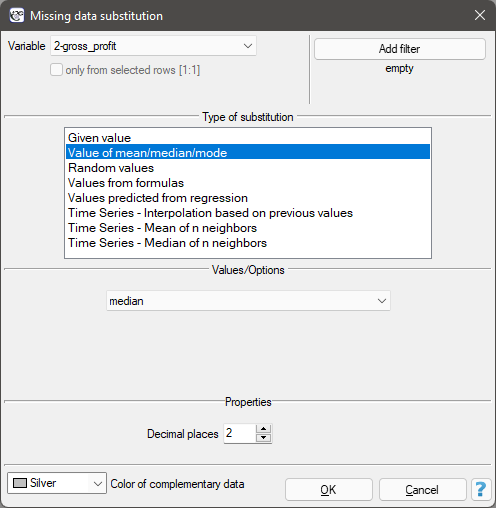
Filling with one value
Selecting one of the following options will replace all missing data in the selected column with the same value:- specified by the user,
- the arithmetic mean calculated from the data,
- the geometric mean calculated from the data,
- the harmonic mean calculated from the data,
- the median,
- the mode (unless it is multiple).
Filling with multiple values
Selecting one of the following options will replace the missing data in the selected column with multiple (usually different) values. These values can be predicted from the column for which the missing data is filled, but they can also be predicted from the values of other columns (variables). You can replace missing data with values:- random from the data;
- random from normal distribution - normal distribution is defined by the mean and standard deviation of the existing data;
- with random values from an interval specified by the user;
- calculated from user functions - this option allows you to use data from other variables to predict the missing value in the selected column;
- predicted from the regression model - this option allows to predict the value of missing data based on the multiple regression model (the functioning of multiple regression is described in the section MULTIPLE LINEAR REGRESSION Multiple linear regression);
- interpolation based on neighboring values - applies to time series - so the user must indicate the time variable indicating the order of data; interpolation involves the determination of values for the missing data in such a way that they are graphically located on the straight line connecting values for data adjacent to the missing data;
- the average of \(n\) neighbors - applies to time series - Thus, the user must indicate the time variable that tells the order of the data; interpolation works by determining the average of the values for \(n\) neighbors preceding and \(n\) neighbors immediately following the missing data;
- median from \(n\) neighbors - applies to time series - thus the user must indicate the time variable telling about the order of the data; interpolation works by determining the median from the values for \(n\) neighbors preceding and from \(n\) neighbors immediately following the missing data;
Example 1. (missingData-publisher.pqs file)
Analysis of the publisher.pqs file with no missing data is discussed in Multiple linear regression. This time we are going to deal with a datasheet in which there are missing data in the column containing gross profit from book sales. For these missing data, the actual values are known (datasheet: "REAL VALUES"), so you can compare the values generated by the program for the missing data with the actual values to compare the results obtained by different techniques. In the example, we will use 2 ways of replacing missing data: replacing with the median value and the value determined by the regression model. The other options are left to you to work on your own.
Replacing missing data with the median value is done on datasheet 1 called "Insert the median". Set the variable prepared to be inputed as gross profit in the Missing data window and select the method of replacement as the median value. This will result in a value of 46 850 dollars being inputed in place of the missing data.
It is suspected that profits are higher when dealing with books from known authors (coded as 1) and lower when dealing with those from unknown authors (coded as 0). So we calculate the median gross profit separately for books by known and unknown authors. We perform the imputation on the datasheet named "Insert two medians". We set the filter twice for the variable defining the authors' popularity (variable 7) - once giving the value 1 and once giving the value 0. The resulting median gross profit in the group of books by popular authors is about 51 000 dollars, and among those by lesser-known authors it is about 34 000 dollars.
Another way to replace missing data, is to use a regression model. Select the "Insert from regression" datasheet and once again select the gross profit variable as the variable to be inserted, and select "Values predicted from regression" as the method of substitution. There will be more variables used to predict the value of gross profit this time: production costs (variable 3), advertising costs (variable 4) and authors' popularity (variable 7). This time the results seem to be less different from the real values, unfortunately the result for the item number 35 is missing, because for this book we had no information about the cost of production, on which, among other things, we wanted to base the prediction.
TRANSFORMATIONS
 The transformation window is accessed via Data\(\to\)Transform...
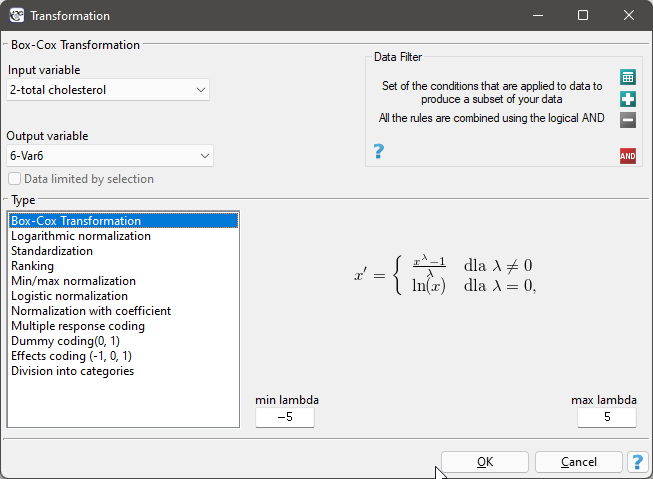
Data transformation is the alteration of data so that it meets certain criteria, such as meeting the criteria for normality of distribution or extending within a specified range.
Box-Cox transformation
The Box-Cox transformation introduced by Box and Cox in 1964 [25] brings the data to a normal distribution through a transformation based on the coefficient \(\lambda\). Positive data are required to perform the transformation. If the data are not positive, it is recommended to first transform them to positive numbers using the min-max normalization method.
The Box-Cox transformation is expressed by the formula:\[ x'=\left\{ \begin{array}{cl} \frac{x^\lambda-1}{\lambda} & $for $ \lambda \neq 0\\ \ln(x) & $for $\lambda = 0, \end{array}\right. \]where the value of \(\lambda\) is determined as the maximum value of the log-likelihood function (\(LL\)) in the interval specified by the researcher. The default range for searching for \(\lambda\) values is the range [-5, 5], and the \(LL\) function is described by the formula:
\[ LL=-\frac{n}{2}\ln(sd_{pop}^2)+(\lambda -1)\sum\ln x \]where:
\(n\) - sample size,
\(sd_{pop}\) - population standard deviation.Note! If min-max normalization was used before the Box-Cox transformation, you can return to the previous range after the Box-Cox transformation by applying that normalization again.Logarithmic normalization
The logarithmic transformation can be used to reduce the skewness of the distribution i.e. when we are dealing with a lognormal distribution.\[ x'=\ln x \]Standardization
Standardization, is a transformation of data that results in a variable having a mean of 0 and a standard deviation of 1.\[ x'=\frac{x-\bar{x}}{sd} \]Ranking
Ranks - are consecutive numbers (usually natural) assigned to the values of ordered measurements of the variable under study. They are often used in those nonparametric tests that rely solely on the order of items in the sample. Assigning ranks calculated according to a variable is called ranking. Ranking can be done for variables sorted ascendingly (this is the default setting) or descendingly.
Recurring values of a variable are assigned a tied rank. The tied rank can be a/an:
- arithmetic mean calculated from the proposed consecutive natural numbers for repeated values - this is the default setting;
- lower rank, i.e., the smallest limit proposed for consecutive repeated values of natural numbers;
- the upper rank, meaning the largest proposed for consecutive repeated values of natural numbers.
For example, for a variable with the following values: 8.6, 5.3, 8.6, 7.1, 9.3, 7.2, 7.3, 7.4, 7.3, 5.2, 7, 9.9, 8.6, 5.7 the following ranks are assigned:sorted values of the variable ranks 5.2 1 5.3 2 5.7 3 7 4 7.1 5 7.2 6 7.3 7.5 7.3 7.5 7.4 9 8.6 11 8.6 11 8.6 11 9.3 13 9.9 14 While for the variable with a value of 7.3 a tied rank calculated as the arithmetic mean of the numbers:7 and 8 is assigned, and for a variable with value 8.6 a tied rank calculated from the numbers: 10, 11, 12 is assigned.
Min/max normalization
The min/max normalization through a linear function puts the data into a user-specified range (\(new_{\min}\), \(new_{\max}\)). You should know the range that the data can cover. If you do not know the range, you can use the largest and smallest value in the analyzed set (in the Transformation window, then select the Calculate from sample option)..\[ x'=\frac{x-\min}{\max-\min}\cdot(new_{\max}-new_{\min})+new_{\min} \]Logistic normalization
Normalization using a logarithmic (S-shaped) function puts the standardized data into the indicated range.\[ x'=\frac{e^x}{1-e^x} \]If you want to stretch the transformed data over a range other than the specified one, then enter the span of the new range in the Transformation window.
Normalizing function with coefficient
This normalization brings the standardized data into the indicated range using an S-shaped function with a changing normalization factor \(\alpha\).\[ x'=\frac{x}{\sqrt{x^2+\alpha}} \]Increasing the \(\alpha\) value creates a graph with a smoother slope.
If you want to stretch the transformed data over a range other than the specified one, then enter the span of the new range in the Transformation window.Multiple response coding
This type of coding allows the answers given to multiple-choice questions to be prepared in such a way as to facilitate their further statistical processing. As a result of applying this transformation, a selected variable with \(k\)-possible answers is broken down into \(k\) new variables. It is necessary to specify which character (or set of characters) is a separator of particular categories. For example, respondents were asked what kind of alcohol they drink? The data is stored in Alcohol column, separating multiple answers with semicolon sign. This way of storing data does not even allow for a simple summary. Among other things, it is not possible to quickly count how many people drink wine. After recoding the multiple responses, three new columns were obtained - one for each possible answer. Each of these columns can now be statistically analyzed.Alcohol Alcohol(beer) Alcohol(wine) Alcohol(vodka) beer;wine 1 1 0 wine 0 1 0 wine 0 1 0 beer 1 0 0 vodka;wine 0 1 1 wine;vodka 0 1 1 beer;vodka 1 0 1 beer;wine;vodka 1 1 1 Dummy coding
Transforming a variable with \(k\) categories by dummy coding allows you to obtain \(k-1\) dummy variables. This form of transformation is primarily used in regression models. A detailed description of this type of transformation can be found in Preparation of variables for analysis in multivariate models PREPARING VARIABLES FOR ANALYSIS IN MULTI-DIMENSIONAL MODELS.Effect coding
Transforming a variable with \(k\) categories by effect coding yields \(k-1\) dummy variables. This form of transformation is used primarily in regression and ANOVA models. A detailed description of this type of transformation can be found in Preparation of variables for analysis in multivariate models PREPARING VARIABLES FOR ANALYSIS IN MULTI-DIMENSIONAL MODELS.Division into categories
This way of preparing data allows for any division of variables, e.g. total cholesterol can be divided according to the current standards (choose Manual division, set the number of categories and enter their limits ourselves and give appropriate labels to each category). However, if we do not have an idea for dividing our data, we can use the automatic division options presented in the window. Possible ways of dividing a variable:- Natural breaks (Jenks) - a method of dividing a variable into classes such that the variance within classes is minimized and the variance between classes is maximized.
- Division by Quantiles - a method of dividing a variable into classes of equal frequency.
- Standard Deviation - a method of dividing a variable into classes based on its distance from the mean by 1, 2, or more standard deviations.
- Standard error of the mean - a method of dividing a variable into classes based on the distance from the mean by 1, 2, or more standard errors of the mean.
- Manual - a method of dividing a variable into classes according to any division entered manually by the user.
In the division window, it is also possible to select Add color scheme then the column that will store the new data will be color coded according to the indicated scheme.
Example 2. (normalization.pqs file)
Perform a transformation on the variables contained in the file:
a) Transform the value of triglycerides using the Box-Cox transformation and then check with the appropriate test whether the data have a normal distribution.
b) Transform the value of triglycerides using the logarithmic transformation and then check with the appropriate test whether the data have a normal distribution.
c) Using min-max normalization, transform the selected variables to the range [0,10].
d) Using logistic normalization, transform the selected variables to the specified range.
e) Using normalization with a coefficient, transform the selected variables to the specified range. Do it several times, changing the value of the coefficient \(\alpha\).
f) Standardize all data that are normally distributed.
g) Transform the variable showing how body weight changed during the diet so that it represents a normal distribution.
h) The question about past infectious diseases was a multiple choice question. Prepare the obtained answers to this question so that they can be further statistically processed i.e. record each of the multiple answers in a different column.
i) Prepare the education variable so that it is stored using dummy variables with dummy coding.
j) Prepare the total cholesterol variable by dividing it into 3 classes according to the percentiles (quartiles). Give the created classes labels : "low", "average", "high" and choose the color scheme.
DIRECT AND INDIRECT STANDARDIZATION
The direct and indirect standardization window for epidemiological coefficients is opened via Data\(\to\)Standardization...
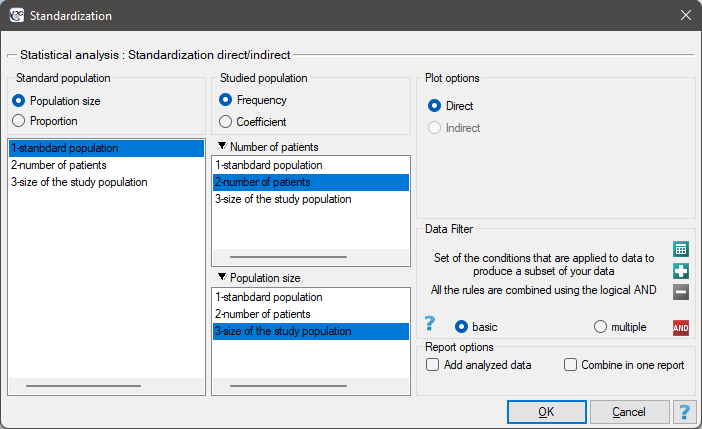
Indirect and direct standardization applies to frequency coefficients, e.g. prevalence rates. Direct comparison of raw rates between different populations, usually living in different geographical areas and differing in factors that may influence the rates (e.g. age), may hide the differences. In order to remove the influence of population structure on these confounding characteristics, comparisons can be made using standardized coefficients. Standardization offers a mechanism to "filter out" the influence of a known confounding factor (e.g. age) and makes standardized coefficients obtained from different populations comparable. A necessary step in the process of standardizing coefficients is the selection of a standard population. The standard population for a population occupying a certain geographical area at a certain time may be a population covering a larger geographical area, including the study area, e.g. if the study population is the population of Wielkopolska voivodeship, the population of Poland may be used as a standard population. It is also possible to select a completely different population, geographically distant from the study population. However, it is advisable that the population chosen should be the reference population not only for the study in hand, but also for many other researchers. This is because it gives the opportunity to compare the results of studies using the same standard population. When choosing a population, it is recommended to pay attention to several aspects of the selection, such as:
- if several populations are being compared, a shared standard population minimizes the variance (variability) of the resulting standard coefficients;
- in trend analysis, the recommended standard population is the one that represents the average structure for the analyzed time period;
- the standard population should be as similar as possible to the studied population;
- the same standard population should be consistently chosen to ensure comparability of studies (choosing a different standard population than the one commonly used means that all historical data would have to be recalculated).
Age and gender are the most commonly used characteristics for standardization, however, the standardization can also be based on other, arbitrary characteristics, which due to their obvious impact on the phenomenon should be "filtered out" from the study. Such features are called disturbing or confounding features. When choosing a characteristic for which we want to standardize, it should be remembered that standardization will be possible if we have sufficient information about the distribution of that characteristic in the population under study and in the standard population (Table 1). In addition, standardization by selected trait, e.g., by age, compensates to some extent for the influence of other age-related confounding factors, such as lifestyle, and standardization by gender compensates for those factors that are gender-related, such as occupation. The compensation of other factors is thus an important aspect in the selection of the trait against which standardization is performed.
Types of standardization:
- direct standardization – the standardized prevalence rate obtained with this method gives what the prevalence of the disease would look like in the study population if it had the structure (e.g., age structure) of the reference population;
- indirect standardization – the standardised prevalence rate obtained with this method gives an indication of what the prevalence of a disease in the study population would look like if the prevalence of the disease in the study population were the same in particular categories (e.g. age categories) as in the reference population.
SAMPLING SIMULATION
 The sampling window is opened via Data\(\to\)Sampling simulation ...
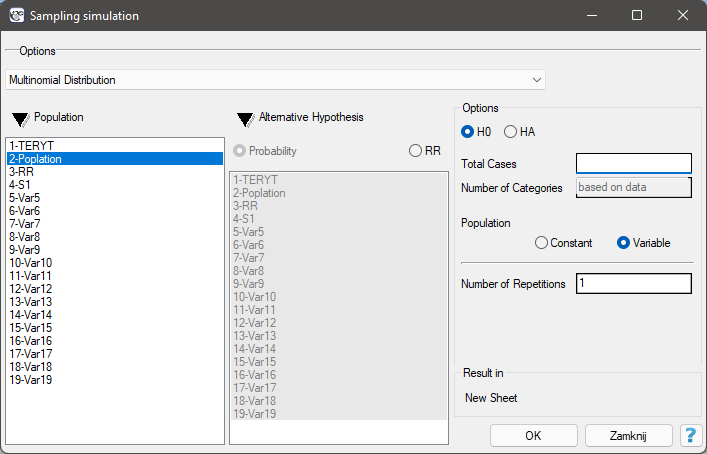
Sampling simulation is a way of generating multinomial distribution data. It involves assigning a given number of cases to categories, in a user-specified manner. The generated data is returned in a new datasheet. The generation can be repeated, so that the datasheet will have many generated columns depending on the number of repetitions of this operation set in the sampling window.
Options:
- H0
- the null hypothesis assumes an even distribution of all cases across categories.
- HA
- the alternative hypothesis assumes an uneven distribution of cases. Selecting this option requires indicating categories with higher probability or relative risk. Information about the defined probability or relative risk for each category should be entered into the selected datasheet column prior to conducting the analysis.
Probability should be defined as a value between 0 and 1, with the sum of the probabilities given for all categories being 1.
Relative Risk defines risk relative to other categories and is a value greater than 1 for the increased risk category and a fraction less than 1 for the reduced risk category.
Setting the probability or relative risk values to the same level for all categories, is the same as the distribution for H0.- Constant population
- assumes that the user is interested in distributing the cases according to the proposed distribution.
- Variable population
- assumes that the user is interested in distributing the cases such that the proportion of cases to the population is distributed according to the proposed distribution.
Example 3. (simulations.pqs file)
As a basis for the simulation, the population of Wielkopolska in 2013 was used, which according to the CSO was \(N\) = 3467016 people. The voivodeship is divided into 315 municipalities. The municipalities differ significantly in the number of inhabitants. The most populous municipality (the capital of the province) 548028 inhabitants, the least populous 1454 inhabitants, the median and quartiles are respectively: 6298 (4462; 9621) inhabitants. Assuming that in 2013 there were 6934 residents of the voivodeship with disease X, it is necessary to simulate the distribution of the sick people in such a way as to obtain:
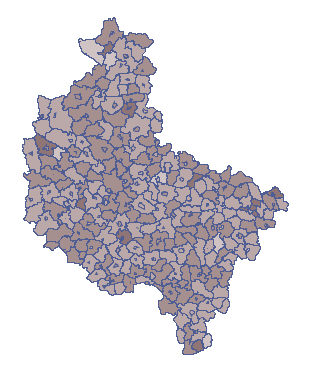
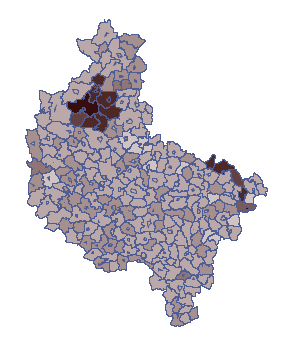
The data drawn based on these assumptions are presented in the first column of the new datasheet. To be able to observe the random distribution of illness rates across municipalities, copy the resulting data into the "Random" datasheet of column "S1". The formula in column 7 will then be recalculated (you can view and change the formula by setting Codes/Labels/Format in the column properties). On the map, the result is shown using the Map manager  from the Spatial Analysis menu. The proportion of patients to population in each municipality is then plotted. An example of the result is shown on the map below.
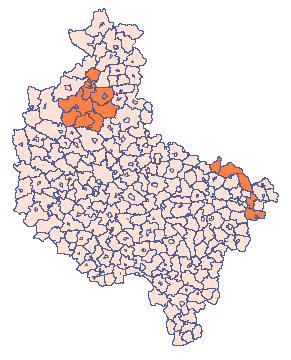
To be able to observe the distribution of the coefficient, assuming greater risk in the indicated municipalities, copy the result obtained to the datasheet "Clusters" column "S1". The formula in column 7 will then be recalculated. On the map, the obtained result is presented using the Map manager from the Spatial Analysis menu. The proportion of ill people to population in each municipality is then plotted. An example of the result is shown on the map below.
SIMILARITY MATRIX
 The relationship between objects can be expressed by their distances or more generally by their dissimilarity. The further apart the objects are, the more dissimilar they are, while the closer together they are, the greater their similarity. It is possible to examine the distance of objects in terms of many features, e.g. when compared objects are cities, their similarity can be defined, among others, based on: length of the road that connects them, population density, GDP per capita, pollution emissions, average real estate prices, etc. With so many different features you have to choose the measure of distance in such a way, that it best reflects the actual similarity of objects.
The window with the settings for the macierzy podobieństwa options is opened via Data\(\to\)Matrices...
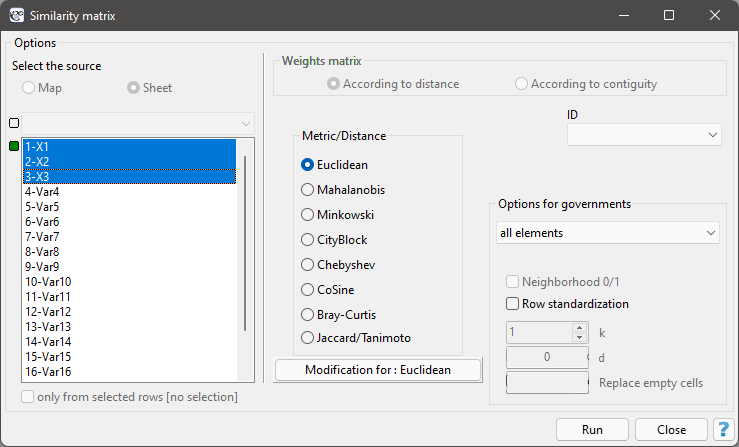
We express the dissimilarity/similarity of objects by means of distances which are most often metrics. However, not every measure of distance is a metric. For a distance to be called a metric it must meet 4 conditions:
- the distance between objects cannot be negative: \(d(x_1, x_2) \geq 0\),
- the distance between two objects is 0 if and only if they are identical: \(d(x_1, x_2) = 0 \Longleftrightarrow x_1 = x_2\),
- the distance must be symmetric, i.e., the distance from object \(x_1\) to \(x_2\) must be the same as from \(x_2\) to \(x_1\): \(d(x, y) = d(y, x)\),
- the distance must meet the triangle requirement: \(d(x, z) \leq (x, y) + d(y, z)\).
Distance/Metrics:
Euclidean
When talking about distance without defining its type, one assumes that it is Euclidean distance - the most common type of distance that is a natural part of real world models. Euclidean distance is a metric and is given by the formula:\[ d(x_1,x_2)=\sqrt{\sum_{k=1}^n\left(x_{1k}-x_{2k}\right)^2} \]Minkowski
The Minkowski distance is defined for parameters \(p\) and \(r\) equal to each other - it is then a metric. This type of metric allows one to control the similarity calculation process by specifying values of \(p\) and \(r\) included in the formula:\[ d(x_1,x_2)=\sqrt[p]{\sum_{k=1}^n\left|x_{1k}-x_{2k}\right|^r} \]Increasing the parameter \(r\) increases the weight assigned to the difference between objects for each feature, changing \(p\) gives more/less importance to closer/farther objects. If \(r\) and \(p\) are equal to 2, Minkowski distance reduces to Euclidean distance, if they are equal to 1, to CityBlock distance, and with these parameters approaching infinity, to Chebyshev metric.
CityBlock (otherwise: Manhattan distance or cab distance)
This is a distance that allows you to move in only two directions perpendicular to each other. This type of distance is similar to moving on perpendicularly intersecting streets (a square street grid that resembles the layout of Manhattan). This metric is given by the formula:\[ d(x_1,x_2)=\sum_{k=1}^n|x_{1k}-x_{2k}| \]Chebyshev
The distance between the objects being compared is the greatest of the distances obtained for each characteristic of those objects:\[ d(x_1,x_2)=\max_{k}|x_{1k}-x_{2k}| \]Mahalanobis
Mahalanobis distance is also called statistical distance. It is a distance weighted by the covariance matrix, by which objects described by mutually correlated characteristics can be compared. The use of Mahalanobis distance has two main advantagesi:1) Variables for which larger variances or larger ranges of values are observed do not have an increased effect on the Mahalanobis distance score (since when using a covariance matrix you standardize the variables using the variance located on the diagonal). As a result, there is no requirement to standardize/normalize the variables before proceeding with the analysis.
2) It takes into account the mutual correlation of the characteristics describing the compared objects (using the covariance matrix it uses the information about the relationship between the characteristics located outside the diagonal of the matrix).\[ d(x_1,x_2)=\sqrt{(\vec{x}-\vec{y})^TS^{-1}(\vec{x}-\vec{y})} \]The measure calculated in this way meets the conditions of the metric.
CoSine
The Cosine distance should be calculated using positive data because it is not a metric (it does not meet the first condition: \(d(x_1, x_2) \geq 0\)). So if you have features that also take negative values you should transform them beforehand using, for example, normalization to an interval spanned by positive numbers. The advantage of this distance is that (for positive arguments) it is limited to the range [0, 1]. The similarity of two objects is represented by the angle between two vectors representing the features of those objects.\[ d(x_1,x_2)=1-K, \]where \(K\) is the similarity coefficient (cosine of the angle between two normalized vectors):
\[ K=\frac{\sum_{k=1}^nx_{1k}x_{2k}}{\sqrt{\sum_{k=1}^nx_{1k}^2}\sqrt{\sum_{k=1}^nx_{2k}^2}} \]Objects are similar when the vectors overlap - then the cosine of the angle (similarity) is 1 and the distance (dissimilarity) is 0. Objects are different when the vectors are perpendicular - then the cosine of the angle (similarity) is 0 and the distance (dissimilarity) is 1.
Example - comparing texts
Text 1: several people got on at this stop and one person got off at the next stop
Text 2: at the bus stop, one lady got off and several got on
One wants to know how similar the texts are in terms of the number of the same words, but is not interested in the order in which the words occur.
You create a list of words from both texts and count how often each word occurred:SŁOWA na tym przystanku wsiadło kilka osób a następnym wysiadła jedna Pani tekst 1 2 1 1 1 1 1 1 1 1 1 0 tekst 2 1 0 1 1 1 0 1 0 1 1 1 The cosine of the angle between the vectors is 0.784465, so the distance between them is not large \(d(tekst_1,tekst_2)=1-0,784465=0.215535\).
In a similar way, you can compare documents by the occurrence of keywords to find those most relevant to the search term.Bray-Curtis
The Bray-Curtis distance (measure of dissimilarity) should be calculated using positive data because it is not a metric (it does not meet the first condition: \(d(x_1, x_2) \geq 0\)). If you have features that also take negative values, you should transform them beforehand using, for example, normalization to an interval spanned by positive numbers. The advantage of this distance is that (for positive arguments) it is limited to the interval [0, 1], where 0 - means that the compared objects are similar, 1 - dissimilar.\[ d(x_1,x_2)=\frac{\sum_{k=1}^n|x_{1k}-x_{2k}|}{\sum_{k=1}^n(x_{1k}+x_{2k})} \]In calculating the similarity measure \(BC\), we subtract the Bray-Curtis distance from the value 1:
\[ BC=1-d(x_1,x_2) \]Jaccard
Jaccard's distance (measure of dissimilarity) is calculated for binary variables (Jaccard, 1901), where 1 indicates the presence of a feature 0- its absence.object 1 1 0 object 2 1 a b 0 c d The Jacckard distance is expressed by the formula:
\[ d(x_1,x_2)=1-J. \]where:
\(J=\frac{a}{a+b+c}\) - Jaccard similarity coefficient.
Jaccard similarity coefficient is in the range [0,1], where 1 means the highest similarity, 0 - the lowest. Distance (dissimilarity) is interpreted in the opposite way: 1 - means that the compared objects are dissimilar, 0 - that they are very similar. The meaning of Jaccard's similarity coefficient is well described by the situation involving the choice of goods by customers. By 1 we denote the fact that the customer bought the given product, 0 - the customer did not buy this product. Calculating the Jaccard coefficient you compare 2 products to find out what part of the customers buy them in together. Of course we are not interested in information about customers who did not buy either of the compared items. Instead, we are interested in how many people who choose one of the compared products choose the other one at the same time. The sum \(a+b+c\) - is the number of customers who chose either of the compared items, \(a\) - is the number of customers choosing both items at the same time. The higher Jaccard's similarity coefficient, the more inseparable the products are (the purchase of one is accompanied by the purchase of the other). The opposite will happen when we get a high Jaccard dissimilarity coefficient. It will indicate that the products are highly competitive, i.e. the purchase of one will result in the lack of purchase of the other.
The formula for Jaccard's similarity coefficient can also be written in general form:\(J=\frac{\sum_{k=1}^nx_{1k}x_{2k}}{\sum_{k=1}^nx_{1k}^2\sum_{k=1}^nx_{2k}^2-\sum_{k=1}^nx_{1k}x_{2k}}\)
proposed by Tanimoto (1957). An important feature of Tanimoto's formula is that it can also be computed for continuous features.
For binary data, Jaccard's and Tanimoto's dissimilarity/similarity formulas are the same and meet the conditions of the metric. However, for continuous variables, Tanimoto's formula is not a metric (does not meet the triangle condition).
[0.2cm] Example - comparison of species
We study the genetic similarity of members of three different species - in terms of the number of genes they share. If a gene is present in an organism, we give it the value 1, 0 - in the opposite case. For the sake of simplicity only 10 genes are analysed.GENES gene1 gene2 gene3 gene4 gene5 gene6 gene7 gene8 gene9 gene10 specimen1 0 1 1 1 1 1 1 0 1 0 specimen2 0 0 1 1 1 1 1 0 1 0 specimen3 1 0 1 1 0 0 1 0 0 0 The calculated similarity matrix is as follows:
OBJECTS specimen1 specimen2 specimen3 specimen1 0 0.857143 0.375 specimen2 0.857143 0 0.428571 specimen3 0.375 0.428571 0 Specimens 1 and 2 are most similar and 1 and 3 are least similar: - The Jaccard similarity of specimen 1 and specimen 2 is 0.857143, i.e., just over 85% of the genes found in the two compared species are shared by them.
- The Jaccard similarity of specimen1 and specimen 3 is 0.375, meaning that more than 37% of the genes found in the two compared species are shared by them.
- The Jaccard similarity of specimen 2 and specimen 3 is 0.428571, i.e. almost 43% of the genes found in the two compared species are common to them.
Similarity matrix options are used to indicate how the elements in the matrix are returned. By default, all elements of the matrix are returned as they were computed according to the adopted metric. You can change this by setting:
Elements of a matrix:
- minimum - means that in each row of the matrix only the minimum value and the value on the main diagonal will be displayed;
- maximum - means that in each row of the matrix only the maximum value and the value on the main diagonal will be displayed;
- \(k\) minimum - means that each row of the matrix will display as many smallest values as indicated by the user by entering the value of \(k\) and the value on the main diagonal;
- \(k\) maximum - means that each row of the matrix will display as many largest values as indicated by the user by entering \(k\) and the value on the main diagonal;
- elements below \(d\) - means that in each row of the matrix those elements will be displayed whose value is smaller than the user specified value \(d\) and the value on the main diagonal;
- elements above \(d\) - means that each row of the matrix will display those elements whose value is greater than the user-specified value of \(d\) and the value on the main diagonal;
Neighborhood 0/1
Choosing the option Neighborhood 0/1, we replace the values inside the matrix with 1, and empty spaces with 0. This way, we mark, for example, whether the objects are neighbors (1) or not (0), that is, we determine the neighborhood matrix.Row standardization
Row standardization means that each item of the matrix is divided by the sum of the matrix row. The resulting values are between 0 and 1.Replace empty cells
Opcja Replacacing empty cells allows you to enter the value to be placed in the matrix in place of any empty items.
The selected object ID allows you to name the rows and columns of the similarity matrix according to the naming stored in the indicated variable.
Example 4. (file: flatsSimilarities.pqs)
In real estate valuation procedures, for both substantive and legal reasons, the issue of similarity plays an important role. For example, it is an essential prerequisite for grouping objects and assigning them to an appropriate segment.
Let's assume that a real estate agent is approached by a person looking for an apartment, who defines those features that the apartment must have and those that have a big influence on the purchase decision but are not decisive. The features that the property must have are:
Data for these locations are summarized in a table, where 1 indicates that the location meets the search conditions, 0 that it does not.
Those locations that do not meet the search conditions will be excluded from the analysis by deactivating the corresponding rows. Deactivate the rows that do not meet any of the search conditions via menu Edit\(\to\)Activate/Deactivate (filter)....
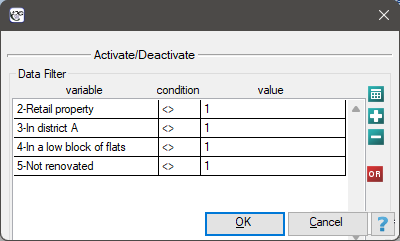
 with
with  ).
).
As a result, 11 locations were identified ( locations 10, 12, 17, 35, 88, 101, 105, 122, 130, 132, 135) that fit this segment (meeting all 4 conditions).
Now we will consider those features that have a strong influence on the customer's decision, but are not decisive:
Number of Apartment Age of the Proximity to the Proximity to the rooms floor building city center public transport station Wanted 3 0 3 30 80 Lokal 10 2 1 1 0 150 Lokal 12 1 2 1 0 200 Lokal 17 3 1 7 20 500 Lokal 35 2 0 6 5 100 Lokal 88 3 4 6 5 200 Lokal 101 4 2 10 0 10 Lokal 105 2 2 6 0 50 Lokal 122 1 0 6 5 100 Lokal 130 2 0 10 0 20 Lokal 132 3 5 6 30 400 Lokal 135 3 1 6 5 100 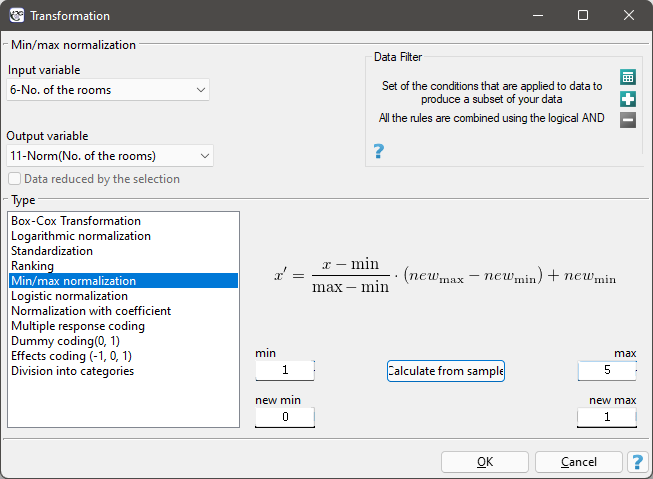
Norm(Number of Norm(Apartment Norm(Age of the Norm(Proximity to the Norm(Proximity to the rooms) floor) building) city center) public transport station) Poszukiwany 0,666666667 0 0,222222222 1 0,142857143 Lokal 10 0.333333333 0.2 0 0 0.285714286 Lokal 12 0 0.4 0 0 0.387755102 Lokal 17 0.666666667 0.2 0.666666667 0.666666667 1 Lokal 35 0.333333333 0 0.555555556 0.166666667 0.183673469 Lokal 88 0.666666667 0.8 0.555555556 0.166666667 0.387755102 Lokal 101 1 0.4 1 0 0 Lokal 105 0.333333333 0.4 0.555555556 0 0.081632653 Lokal 122 0 0 0.555555556 0.166666667 0.183673469 Lokal 130 0.333333333 0 1 0 0.020408163 Lokal 132 0.666666667 1 0.555555556 1 0.795918367 Lokal 135 0.666666667 0.2 0.555555556 0.166666667 0.183673469
To build the first matrix, in the similarity matrix window, we select 5 normalized variables labeled as Norm, the Euclidean metric, and as Object Identifier the variable " Location".
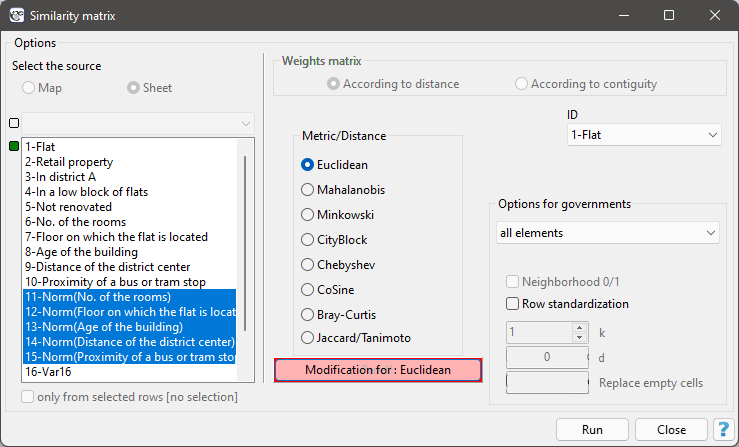
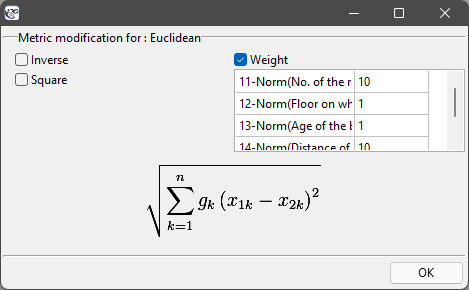
Euclidean Wanted ... Wanted 0 ... Location 10 1.10 ... Location 12 1.31 ... Location 17 1.04 ... Location 35 0.96 ... Location 88 1.23 ... Location 101 1.38 ... Location 105 1.18 ... Location 122 1.12 ... Location 130 1.32 ... Location 132 1.24 ... Location 135 0.92 ...
Euclidean with scales Wanted ... Wanted 0 ... Location 10 3.35 ... Location 12 3.84 ... Location 17 1.44 ... Location 35 2.86 ... Location 88 2.78 ... Location 101 3.45 ... Location 105 3.37 ... Location 122 3.39 ... Location 130 3.43 ... Location 132 1.24 ... Location 135 2.66 ...
WORKING WITH RESULTS SHEETS (REPORTS)
A report is a project element used to store the results of performed statistical analyses. It is included in the project automatically and assigned to the active datasheet when the selected statistical procedure is completed. A report is not editable, except for its chart and title. You can edit the graph by double-clicking the mouse or through the right-click context menu. Editing of the title is done in Project Manager by adding or changing the description.
The most important report related operations can be done through the right-click context menu in the report window:
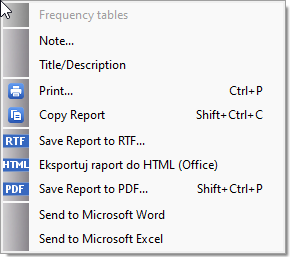
- Printing
Printing options are available through:
– context menu,
– menu File\(\to\)Print... - Exporting and sending reports
Reports created in \(\mathbb{PQ}\)Stat can be exported to a file in *.rtf, *html and *.pdf formats. They can also be exported to Word or Excel documents.
If you are exporting in the Project Manager, you can put the reports in separate files or in one common file. To do this, select the chosen reports and then select the button and export to a file or files of the chosen format. Exporting of individual reports can be done separately through the context menu in the report window. - Describing reports
Reports can be described in Project Manager or the report window by adding a title or a note. - Editing charts
Editing the chart regarding its general and specific options is available through the context menu in the report window. - Copying reports
Using the system clipboard you can also transfer analysis results to other programs such as Word, Excel. - Deleting reports
Deleting a report is possible via:
– context menu Delete report (Shift+Del) on the report name in the Navigation tree,
– Project Manager.
Changing the report order is possible via the context menu of the right mouse button Move up (Ctrl+Up) or Move down (Ctrl+Down) on the report name in the Navigation tree.
Adding information to the report name in the Navigation tree such as:
- time of generation,
- description,
- filter,
- grouping variable name,
- variable name.
is possible after selecting the corresponding option in the program settings window.